Use Vouchers & Offers to configure customer discounts and promotions, including validity dates, minimum order values, applicable channels, and usage rules.
How to Add Vouchers
- Go to Management > General > Vouchers & Offers
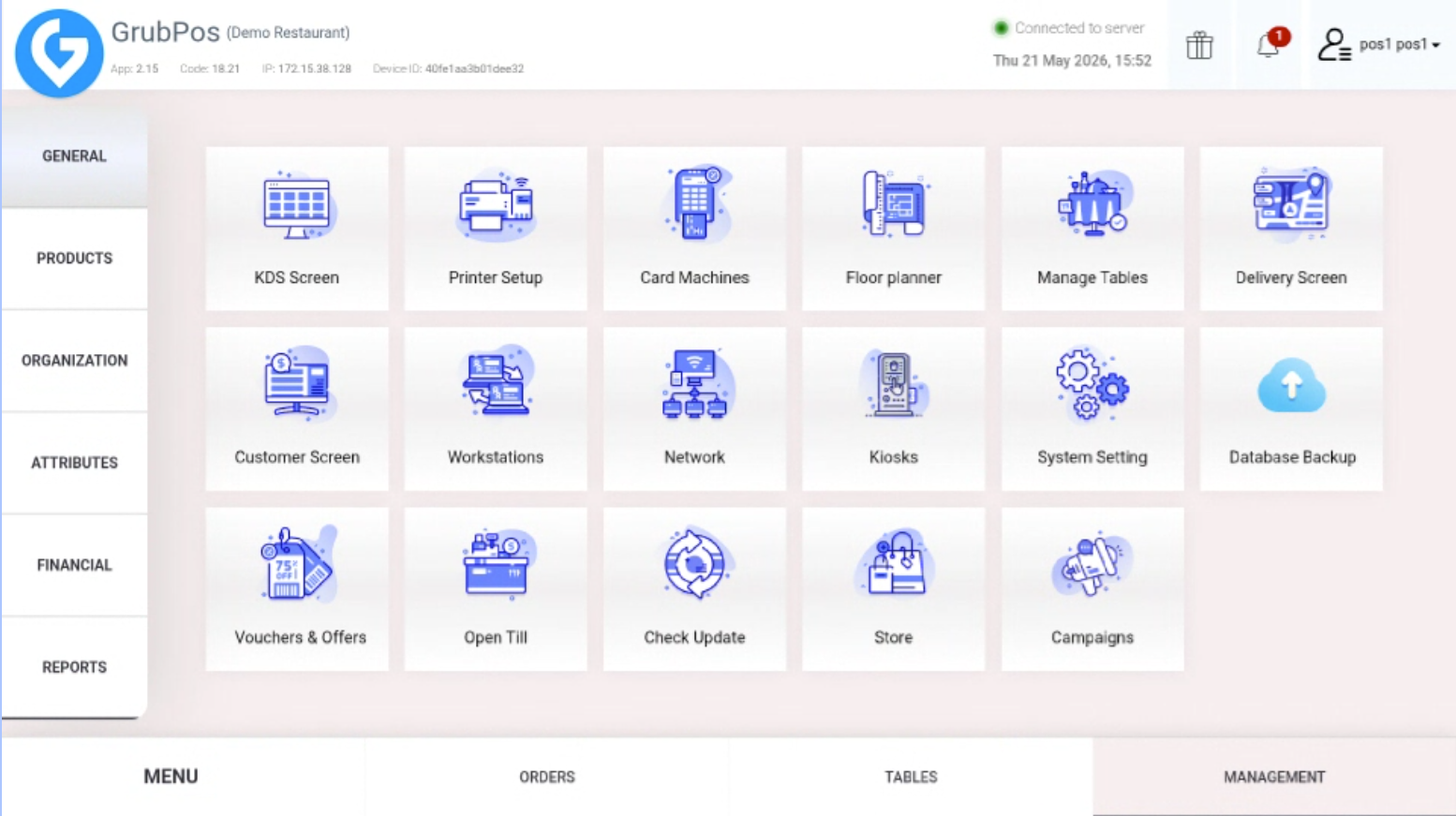
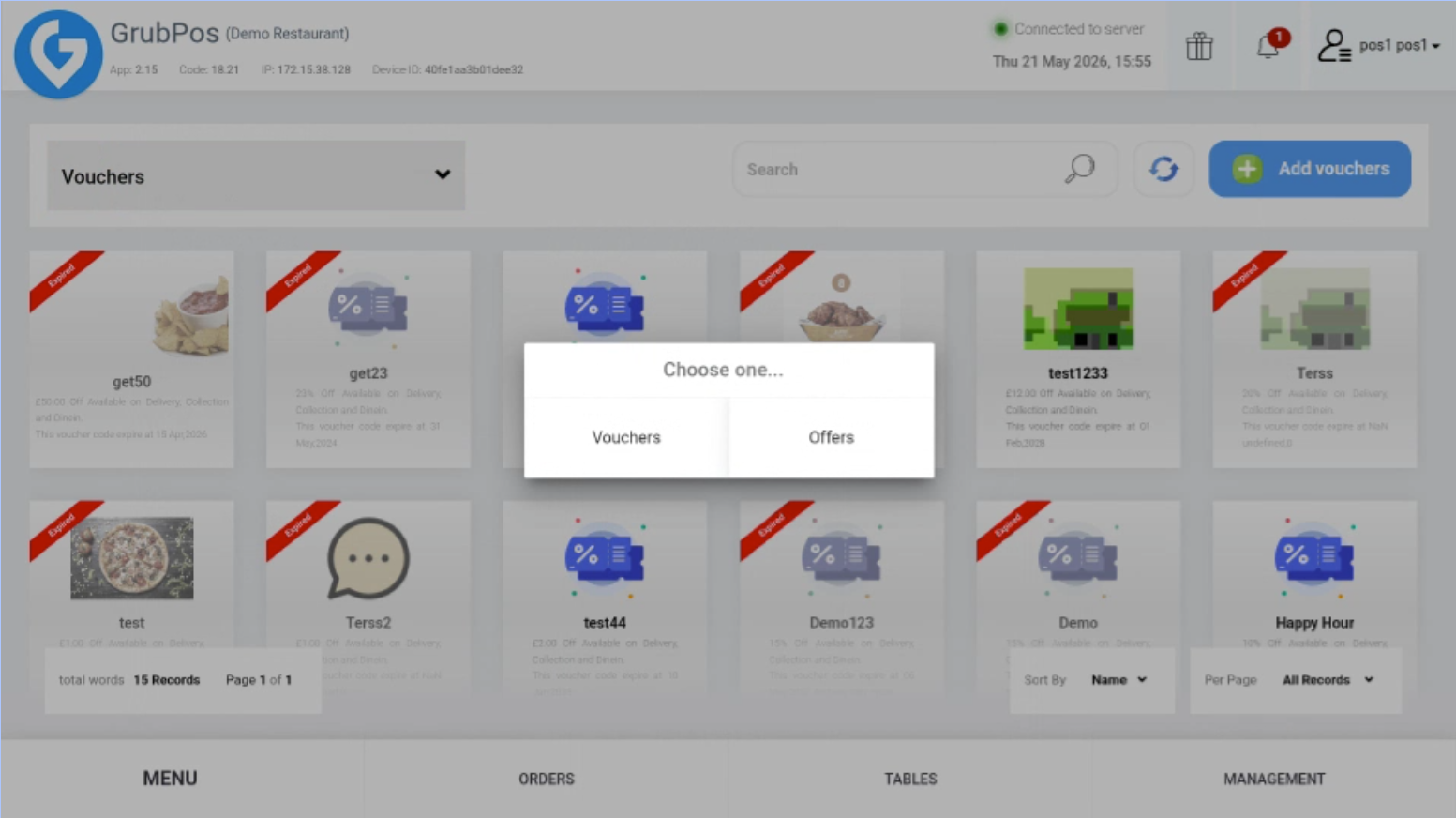
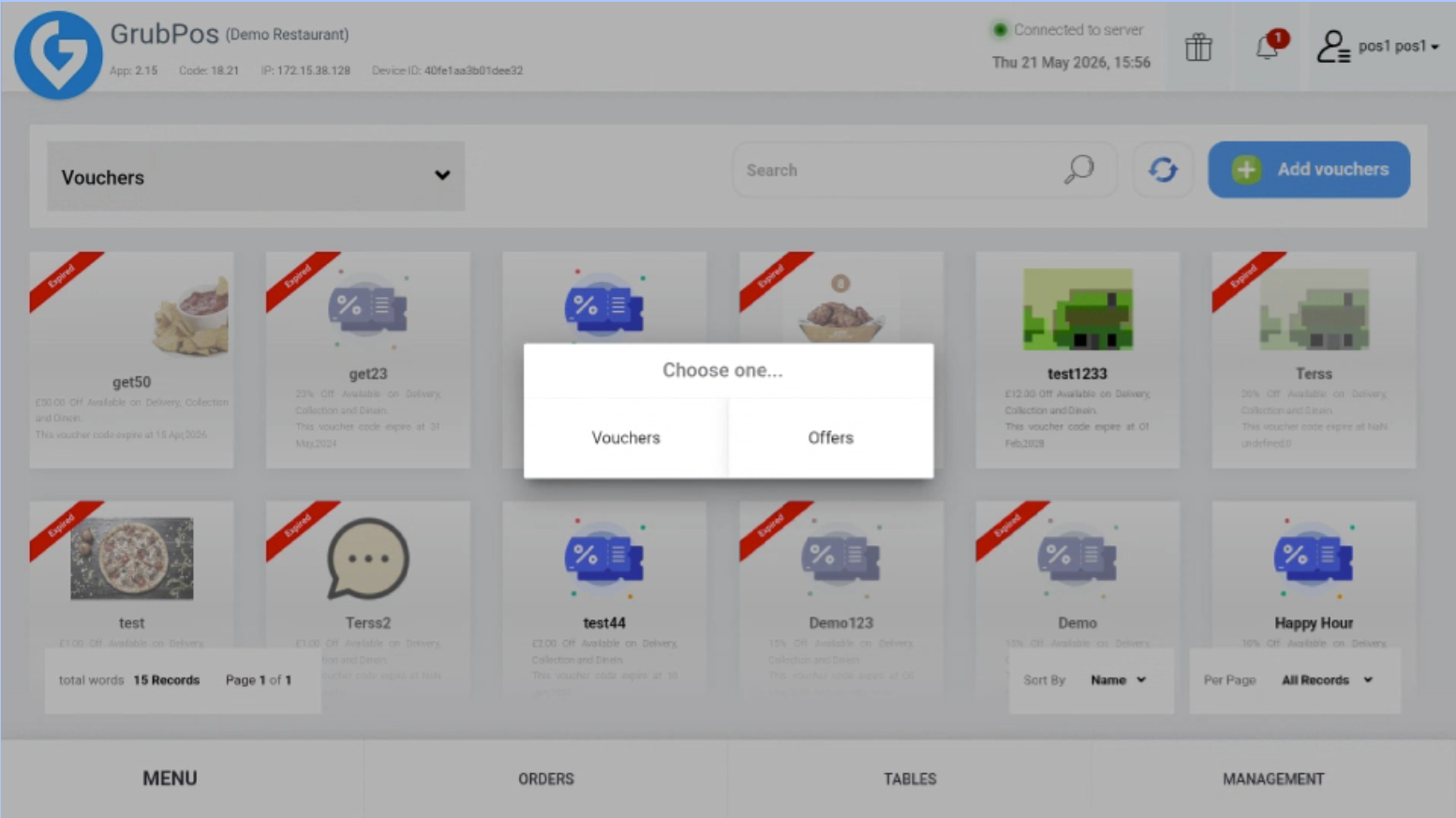
- On the left side, select “Vouchers”
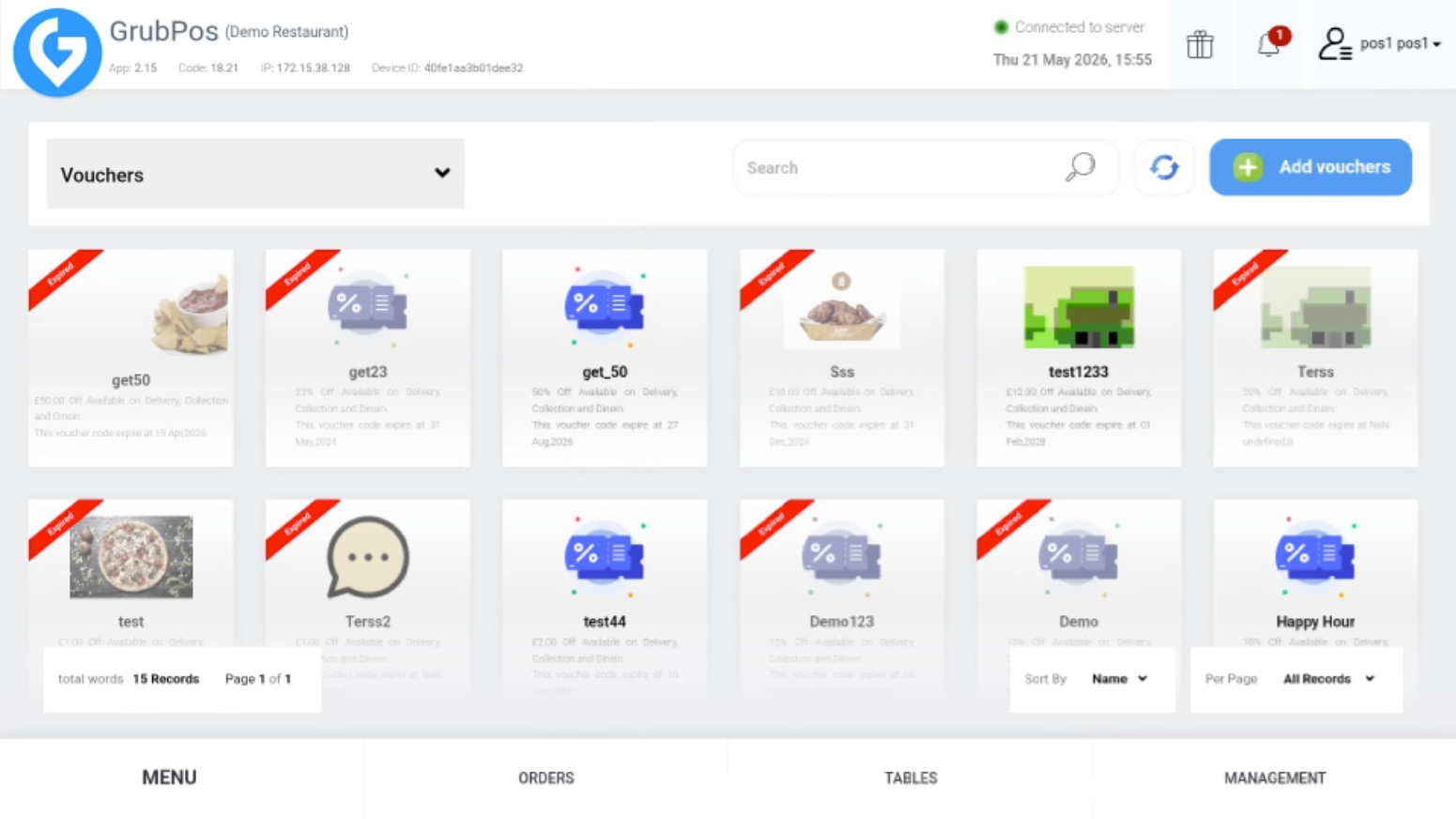
- Click “Add Voucher” on the upper right side
- Fill in all required fields:
- Voucher name
- Status (Publish, Pending for review, Draft)
- Offer value
- Minimum order
- Valid from / Valid to
- Photo
- Blocked categories (optional)
- Disable on devices (Kiosk, Mobile App, Website)
- Use only once option
- Work on offers option
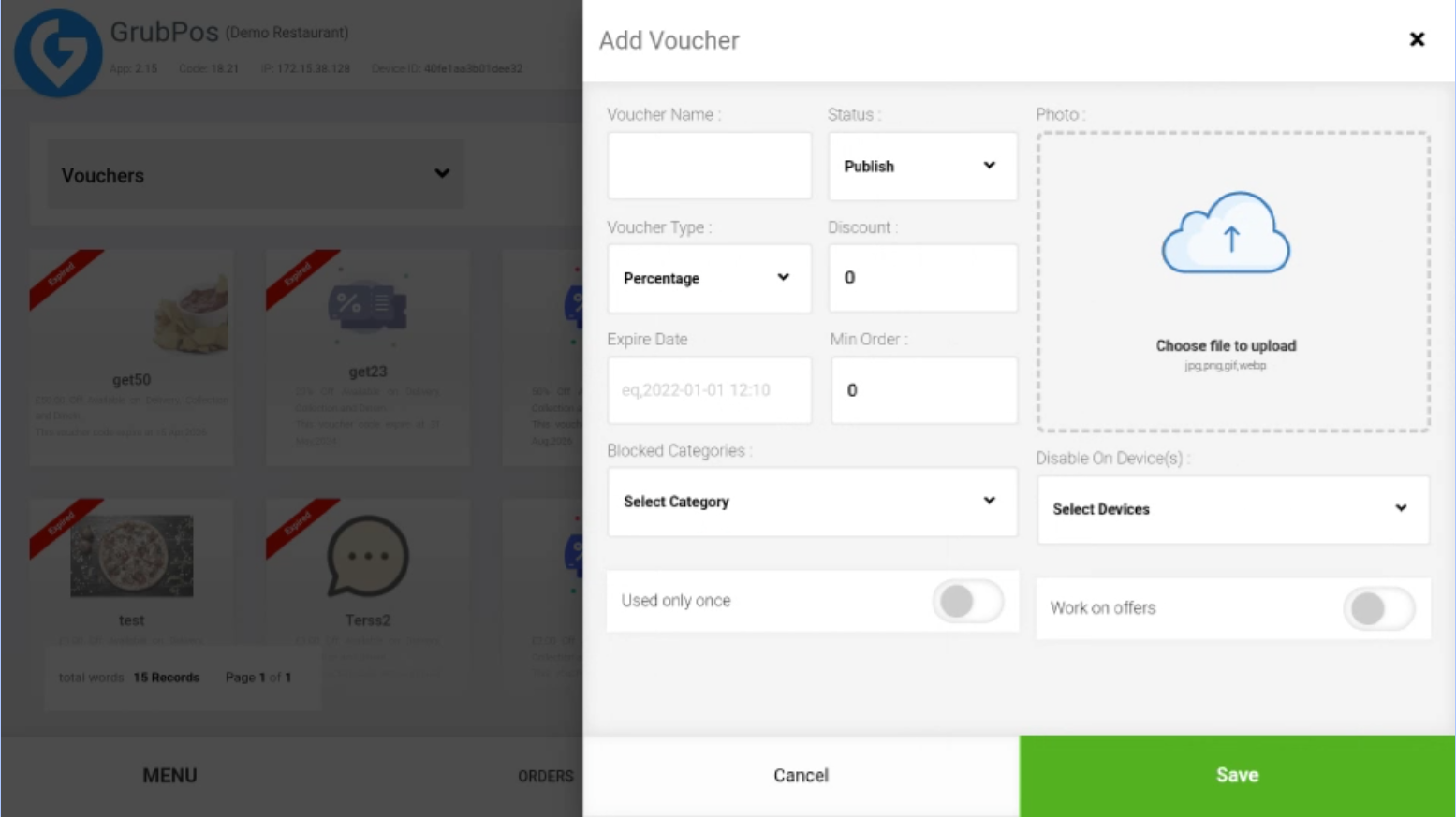
- Click Save
How to Add Offers
- Go to Management > General > Vouchers & Offers
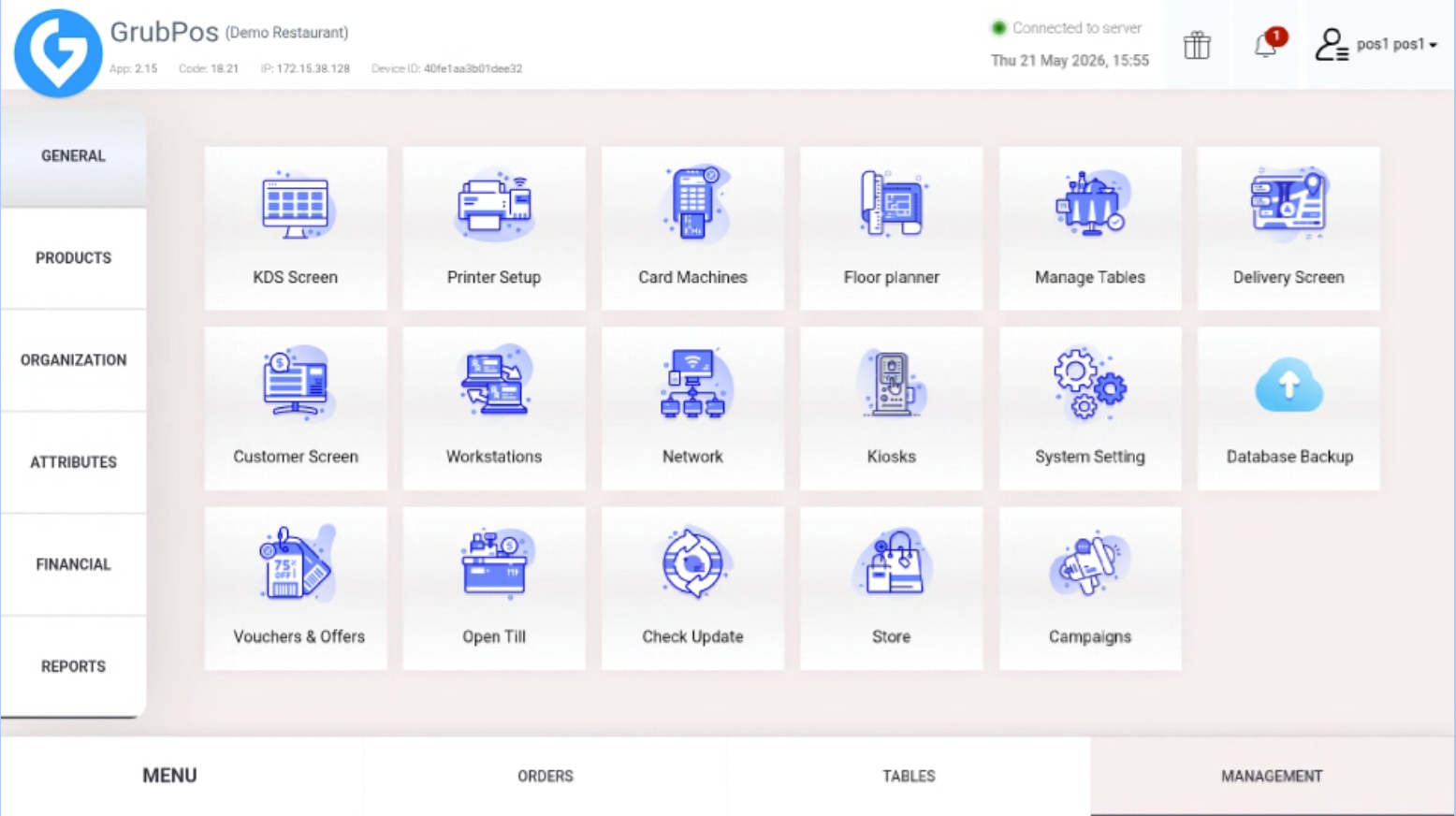
- On the left side, select “Offers”
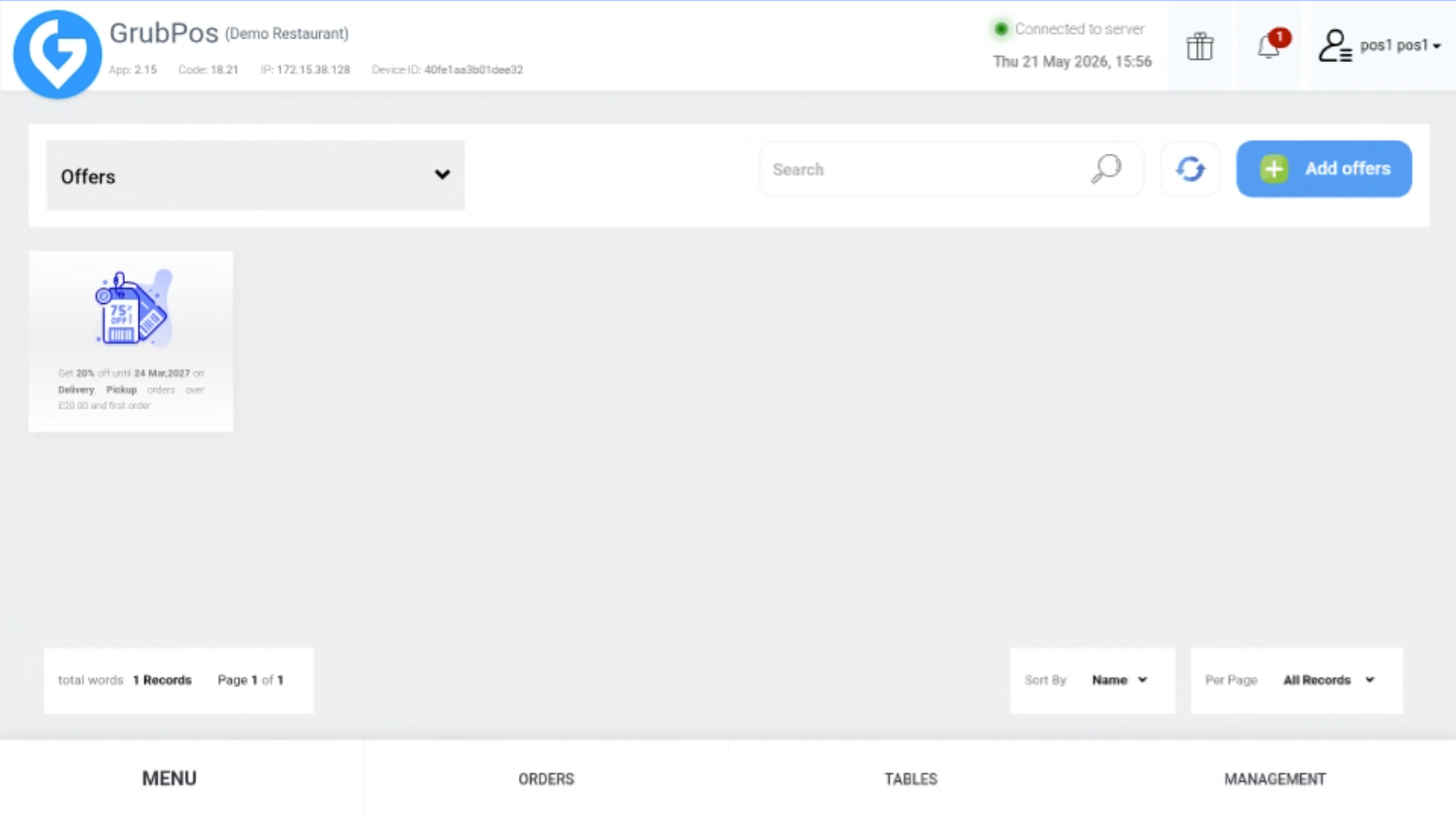
- Click “Add Offer” on the upper right side
- Fill in all required fields:
- Offer type (Percentage / Fixed amount)
- Status (Publish, Pending for review, Draft)
- Offer value
- Minimum order
- Valid from / Valid to
- Photo
- Blocked categories (optional)
- Applicable to (Delivery, Pickup, Eat-in)
- Blocked days (optional)
- Use only once option
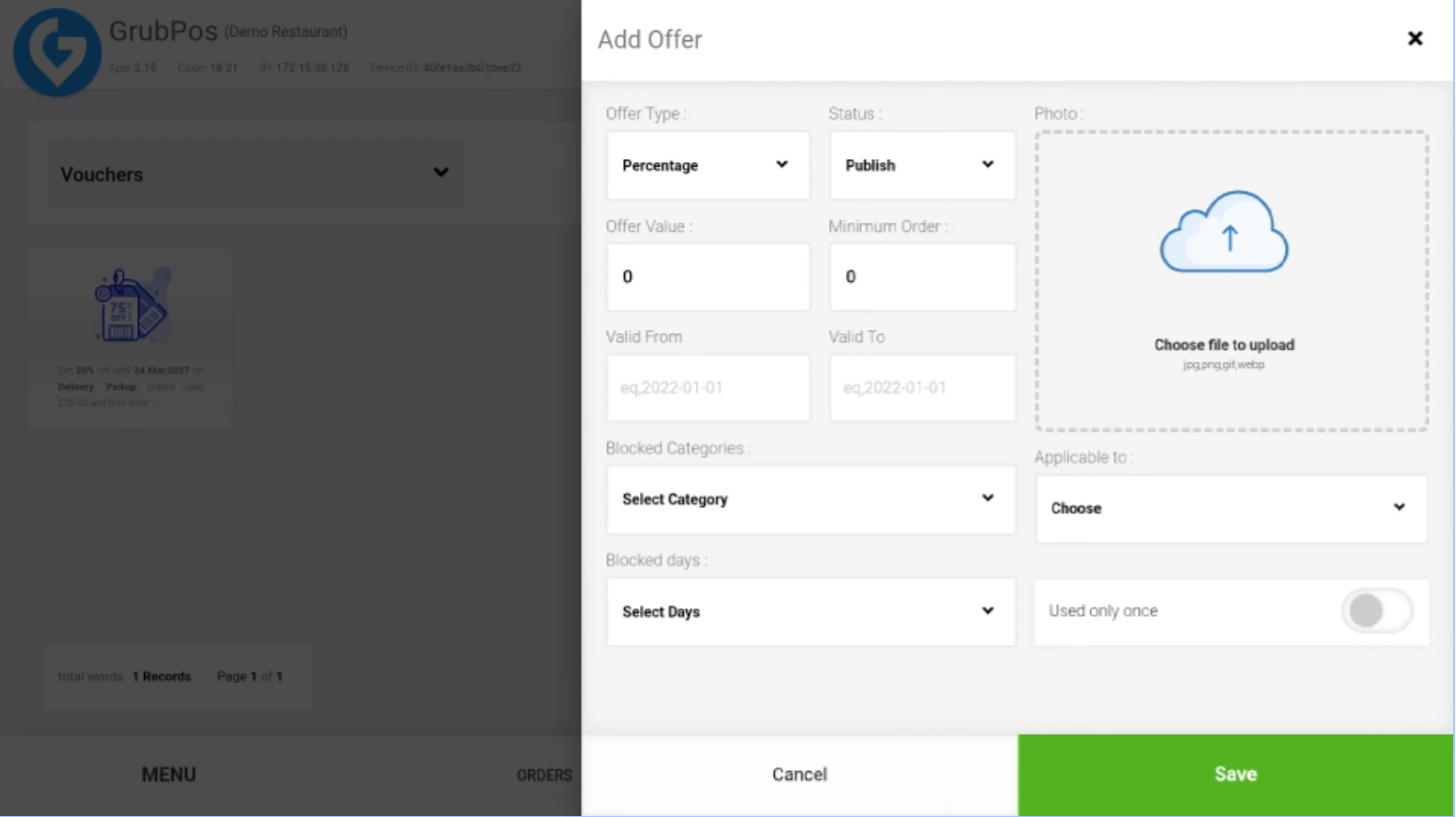
- Click Save
Features
- Edit vouchers and offers
- Delete vouchers and offers
- Print QR codes for vouchers and offers
- View and manage active offers and vouchers
Was this article helpful?
That’s Great!
Thank you for your feedback
Sorry! We couldn't be helpful
Thank you for your feedback
Feedback sent
We appreciate your effort and will try to fix the article