The KDS (Kitchen Display System) displays incoming orders directly in the kitchen so staff can monitor order status and workflow in real time.
How to Manage Kitchen Screens
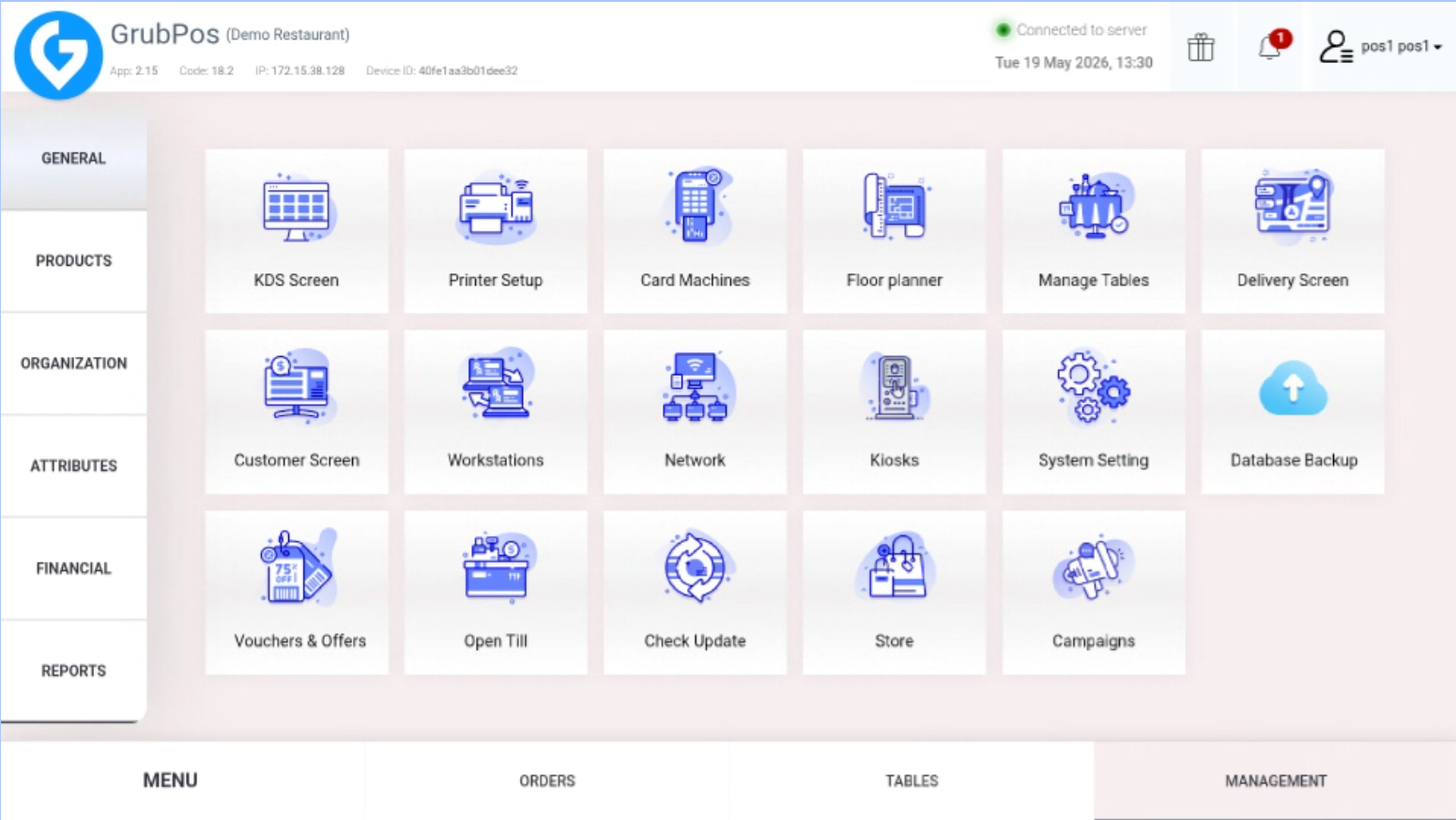
- Go to Management > General > KDS Screen
- To use the kitchen screen service, you must open the URL below on the kitchen screen
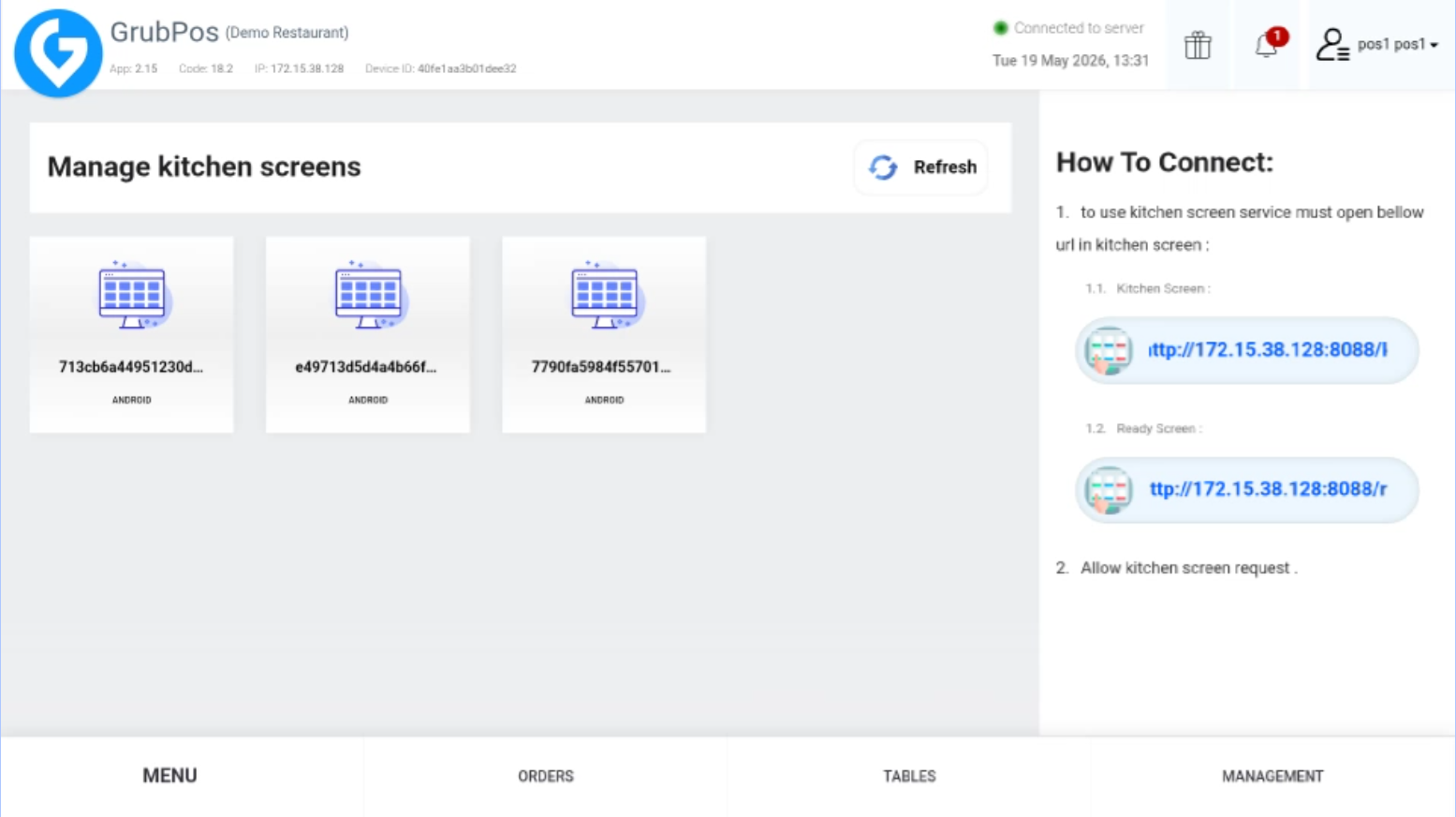
- Allow the kitchen screen request
Additional KDS Configuration
After a KDS device opens the Kitchen Screen URL, the initial connection must be approved from the central station. Once approved, it appears in the KDS list and can be configured individually.
- KDS Name — assign a recognisable device name.
- Alarm — warn and ring after an order preparation time expires.
- Don’t Show Ready Items — remove items already marked ready from the working view.
- Show Ready Tab — separate Food Is Ready and Complete orders into dedicated tabs.
- Don’t Show Sent Items — hide served items after a serve request has been completed.
- Kitchen Stations — restrict a KDS to selected product categories, useful for separate kitchen sections.
- Sortable Orders — allow manual sorting; when disabled, orders are ordered by preparation time.
- Delivery Details / Customer Details / Due Time — control which order details are shown.
- Minimizable Item — allow orders to be minimised.
- Show Print Label Item — enable item-label printing.
- Order Width / Font Size — adjust screen presentation.
- Print Receipt/Label on Local Printer — use a printer attached directly to the KDS instead of sending the request through the central station.
Was this article helpful?
That’s Great!
Thank you for your feedback
Sorry! We couldn't be helpful
Thank you for your feedback
Feedback sent
We appreciate your effort and will try to fix the article