Use Printer Setup to configure receipt and kitchen printers and customise order-printing settings.
How to Add a Printer
- Go to Management > General > Printer Setup
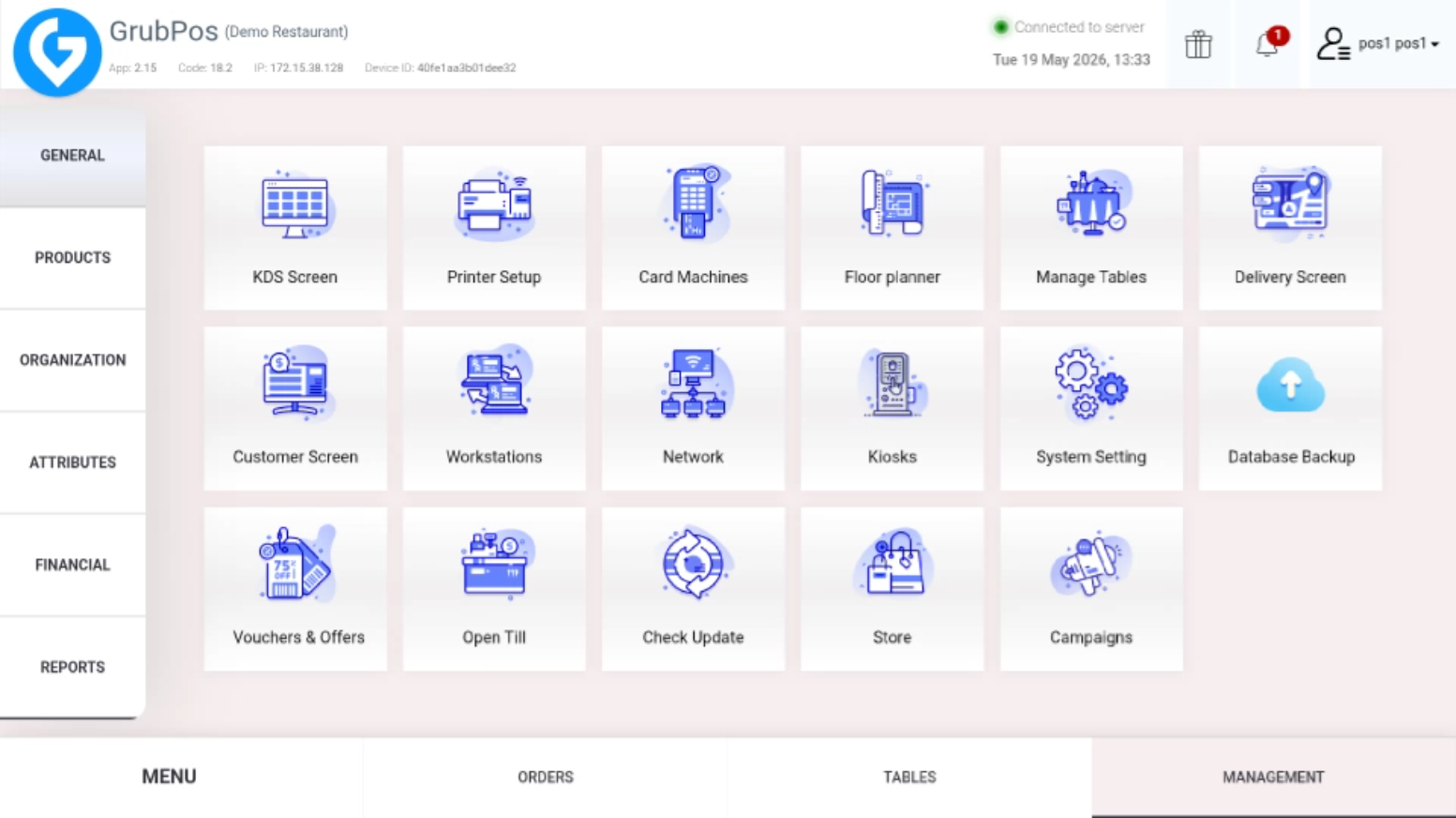
- Click “Add Printer” on the upper right side
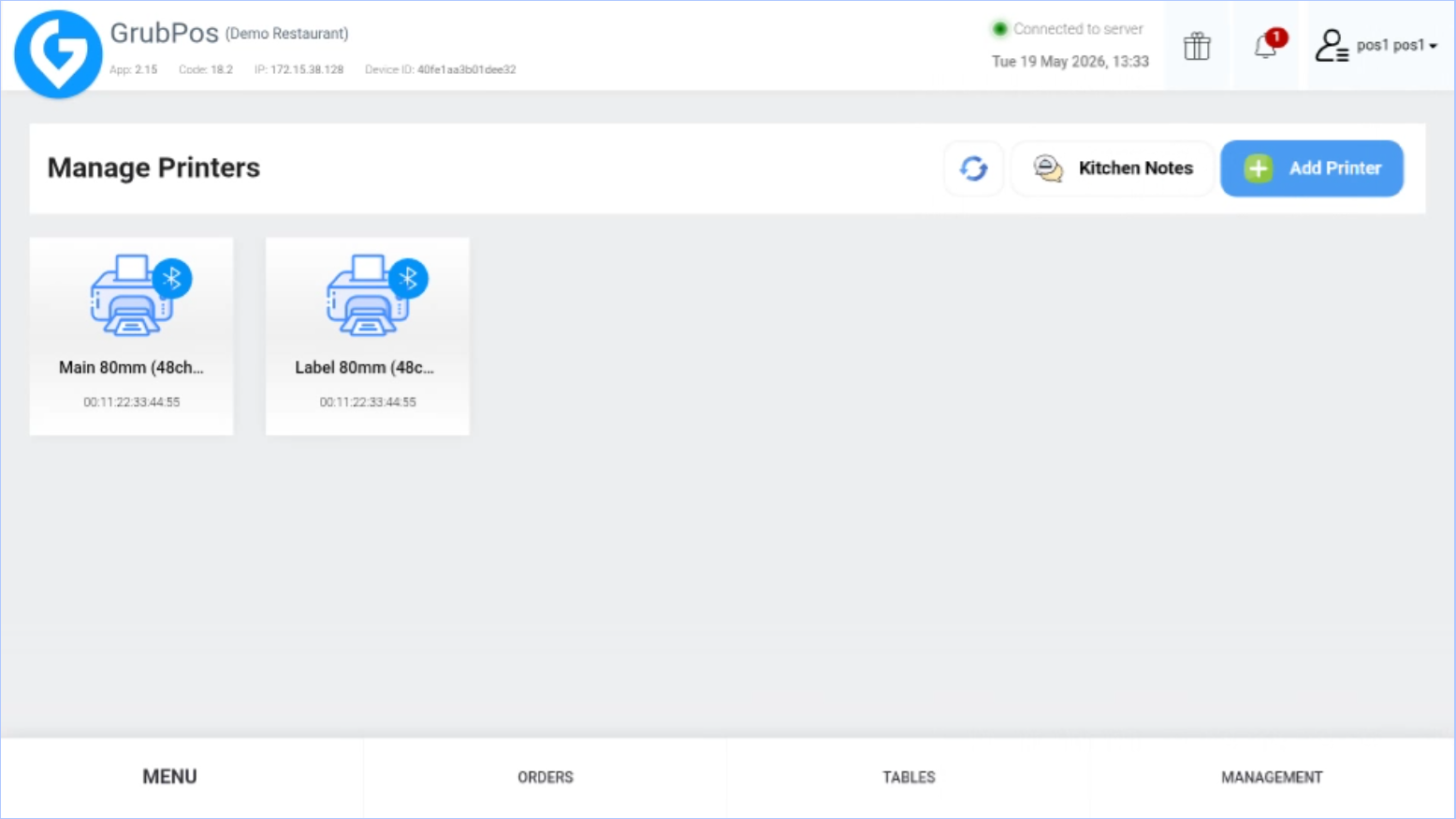
- Fill out the Add Printer, Customize, and Style sections
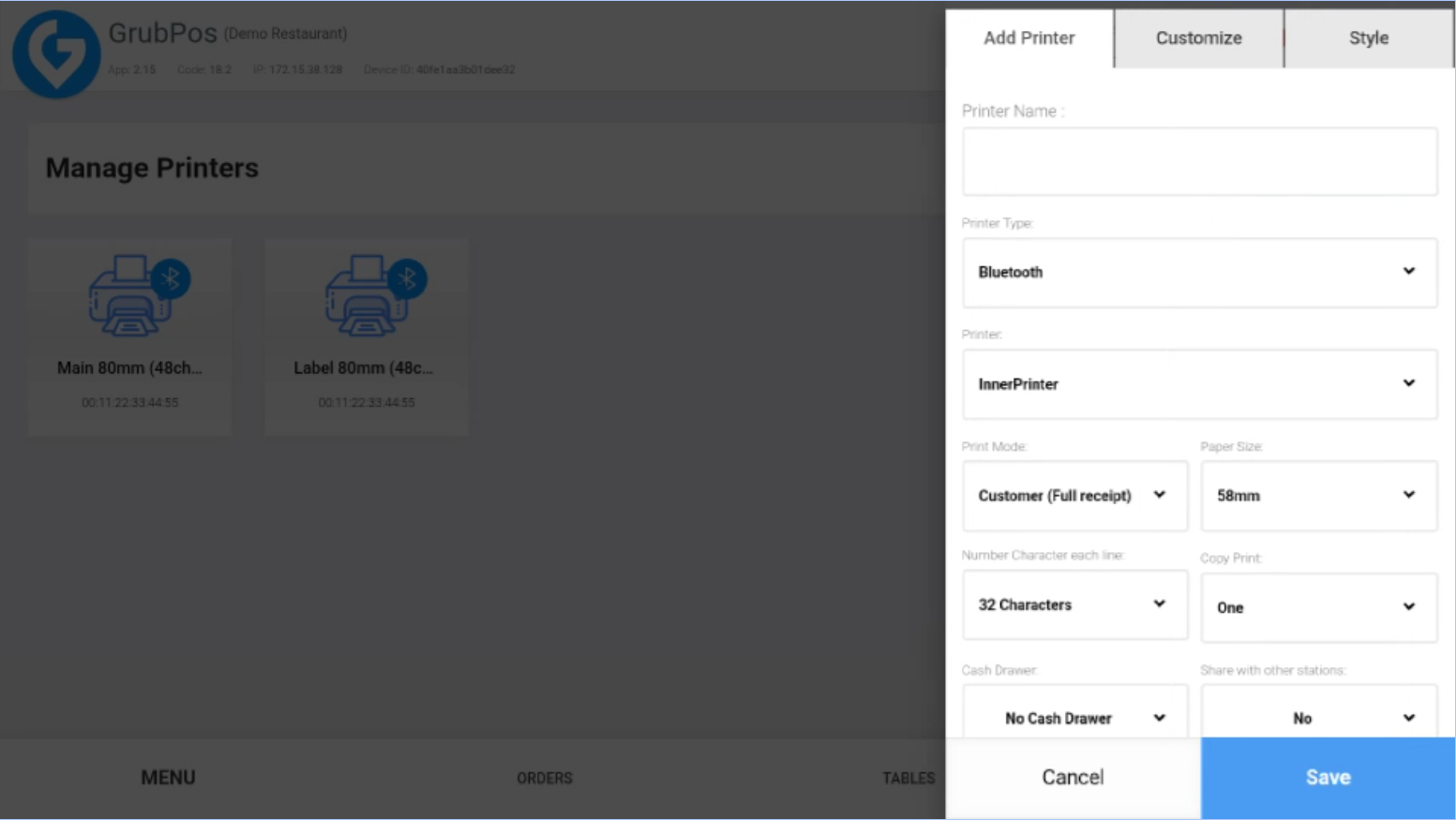
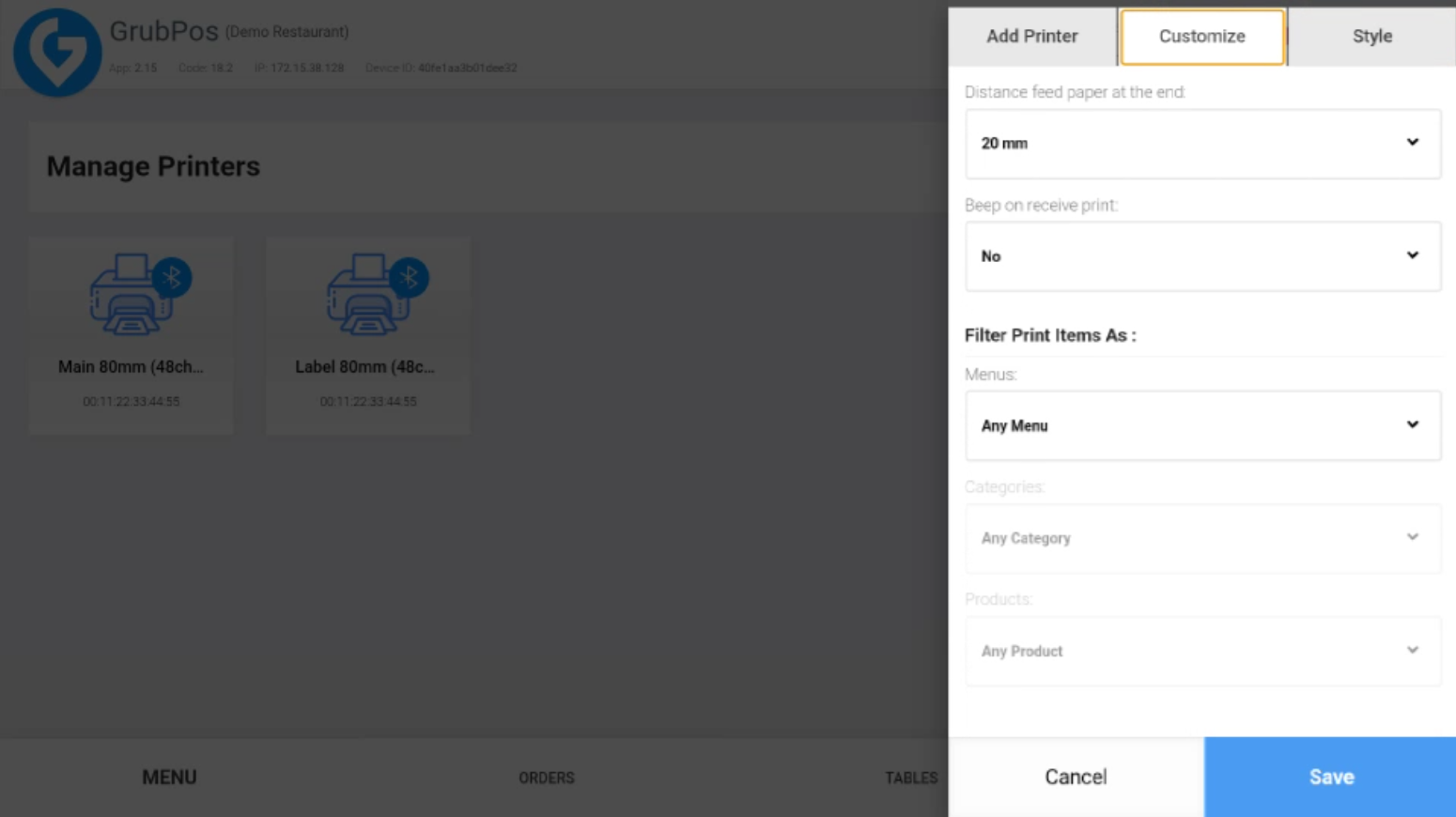
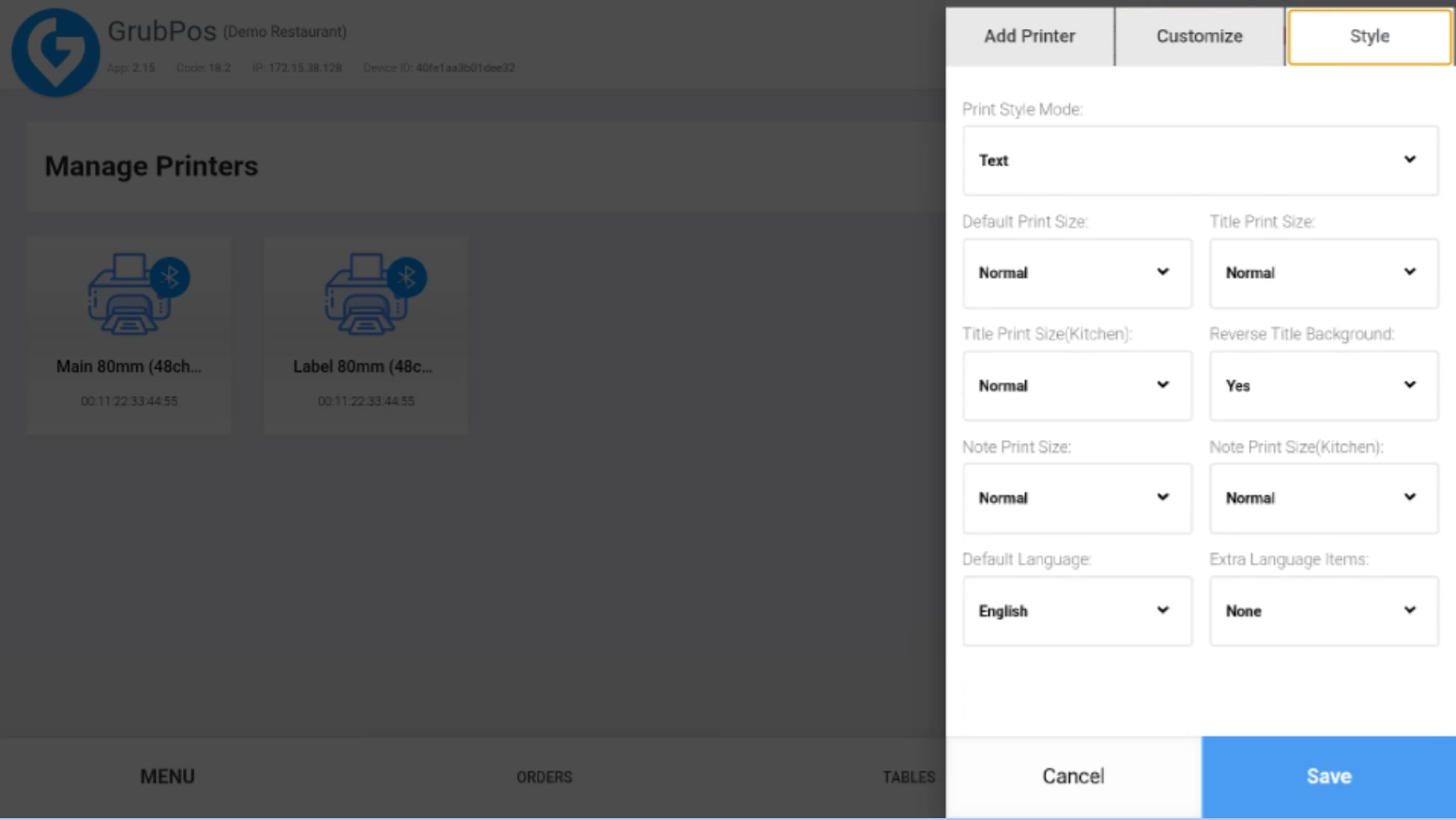
- Make sure to enter the correct details
- Click Save
Printer Setup Features
This printer setup includes several features such as:
- Updating paper size
- Setting number of characters per line
- Selecting number of print copies
- Choosing print mode
- Add kitchen notes and send them to the target printer and KDS screens
- View all notes under the “Notes” section
Printer Settings Reference
- Printer Name — the printer’s display name.
- Printer Type — selected when a printer is first created: Bluetooth, USB, or Network.
- Connection details — Device for Bluetooth/USB, or Address and Port for network printers.
- Printer Mode — kitchen order, customer receipt, or label.
- Paper Size — roll width in millimetres.
- Number Characters Each Line — the guide recommends 46 characters for 80mm printers and 32 for 58mm printers.
- Copy Print — number of copies per print request.
- Cash Drawer — choose the connected drawer type when it should open after an order.
- Share with Other Stations — make a central-station printer available to other stations.
- Distance Feed Paper at the End — paper-feed distance before cutting.
- Beep on Receive Print — sound on print request; the supplied guide notes this often does not work on Sunmi device printers.
- Filter Print Items As — restrict a printer to selected menus, categories, or products.
- Style / Print Style Mode — control print appearance and choose Text or Image printing. The guide notes GSv mode is commonly supported for image printing.
- Extra Language Items — print translated product names in additional configured languages.
Multi-station recommendation from the supplied guide: For busy stores with multiple stations, configure kitchen printers on one central station and use sharing to reduce printing conflicts. Tablet printing behaviour differs: non-customer-receipt printers configured on the central station can handle tablet orders without enabling Share on the server station.
Test a Printer
Select a configured printer and choose Test Print to verify that it is working correctly.
Was this article helpful?
That’s Great!
Thank you for your feedback
Sorry! We couldn't be helpful
Thank you for your feedback
Feedback sent
We appreciate your effort and will try to fix the article