Use Manage Tables to create, edit, and organise tables on your floor plans, including each table’s name, type, and capacity.
How to Add New Table
- Go to Management > General > Manage Tables
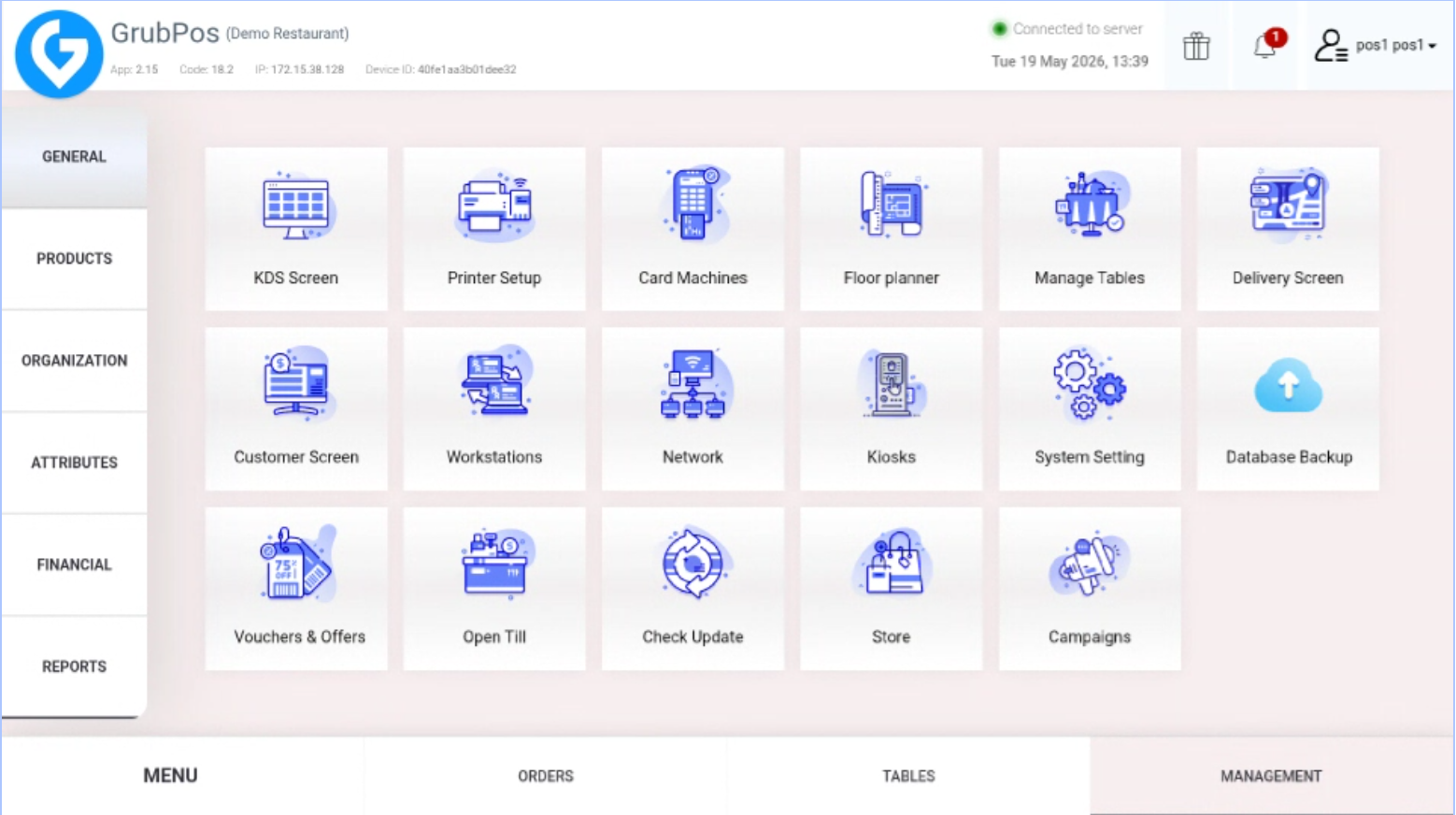
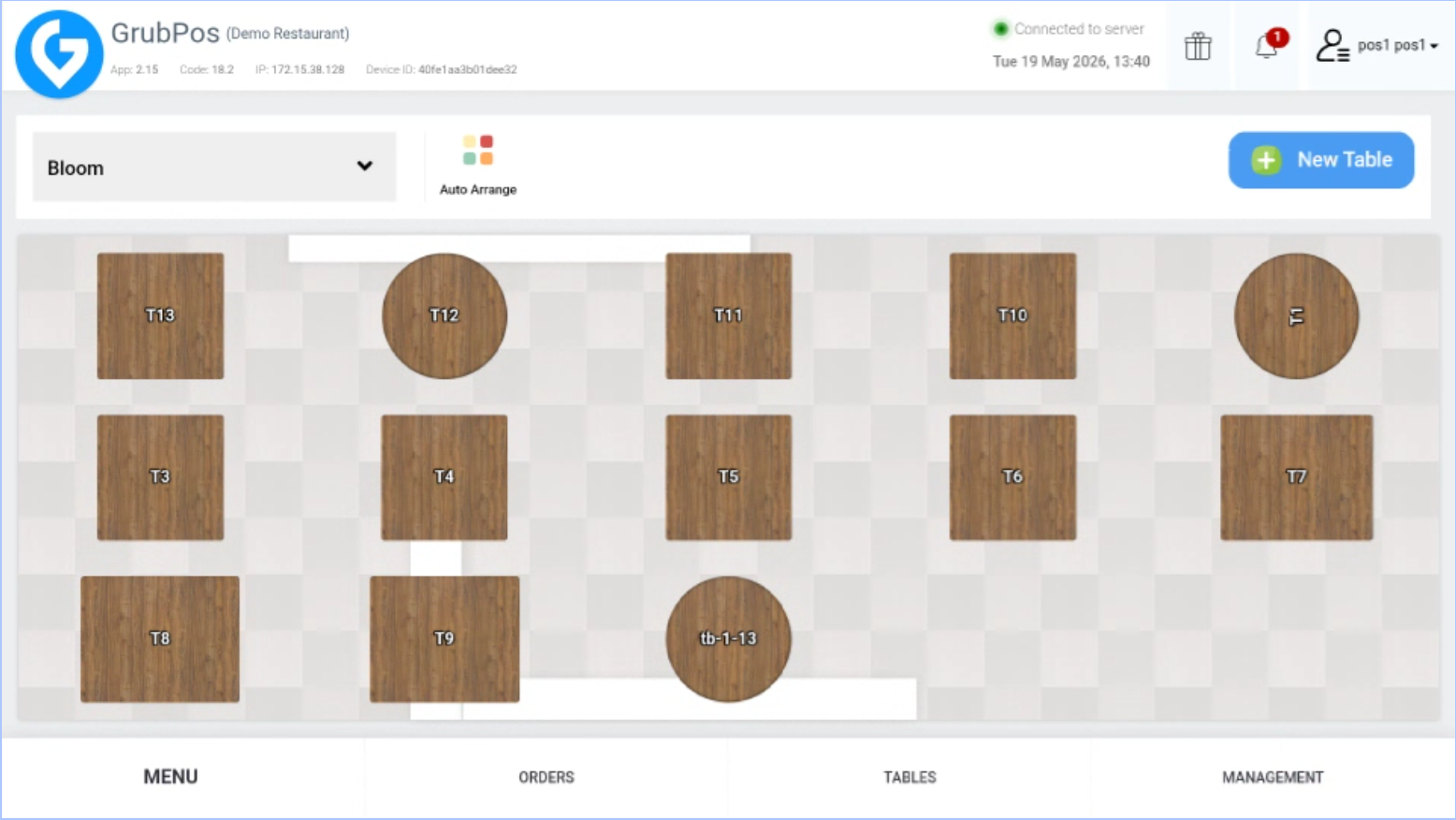
- Click New Table on the upper right side
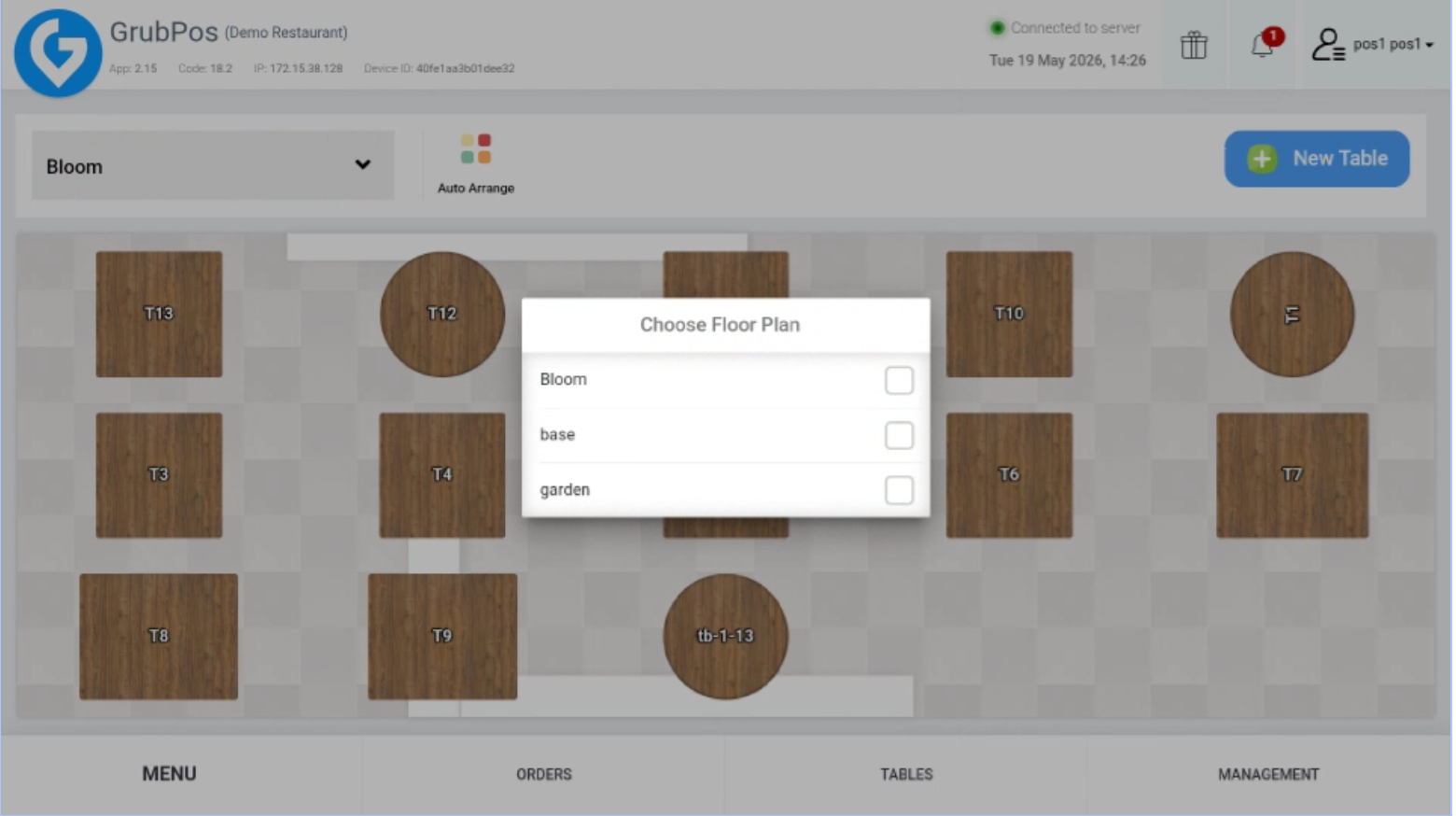
- Select the floor plan where you want to add the table
- Fill in the table name, table type, and capacity
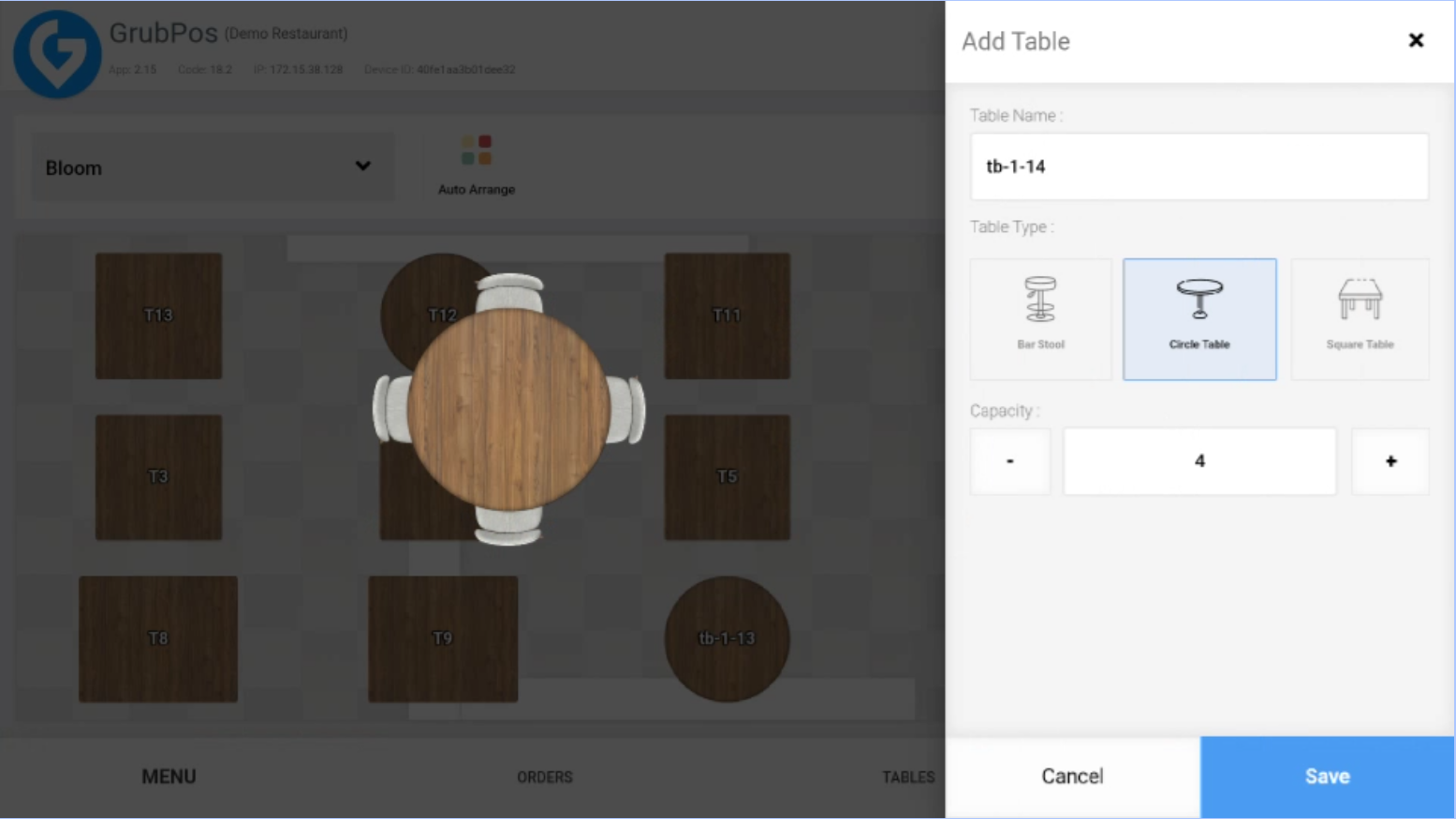
- Click Save
Features
- Arrange tables manually or use Auto Arrange
- Select and edit tables for different floor plans
Was this article helpful?
That’s Great!
Thank you for your feedback
Sorry! We couldn't be helpful
Thank you for your feedback
Feedback sent
We appreciate your effort and will try to fix the article