The Clock-In/Out Report feature in GrubPOS allows users to export employee attendance and time tracking records for review and reporting purposes.
How to Export the Clock-In/Out Report
- Go to Management > Reports > Clock-In/Out Report
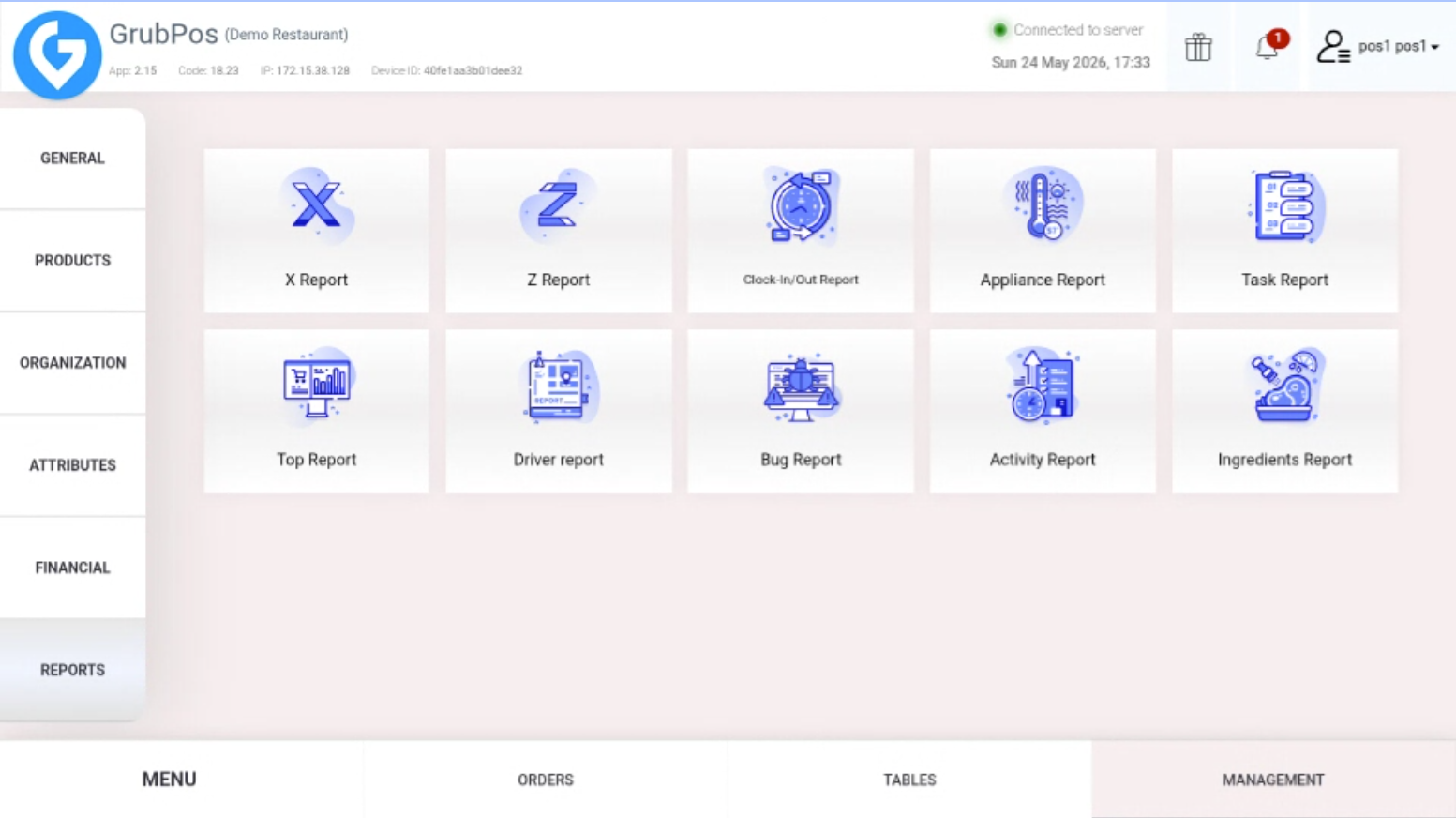
- Click Export
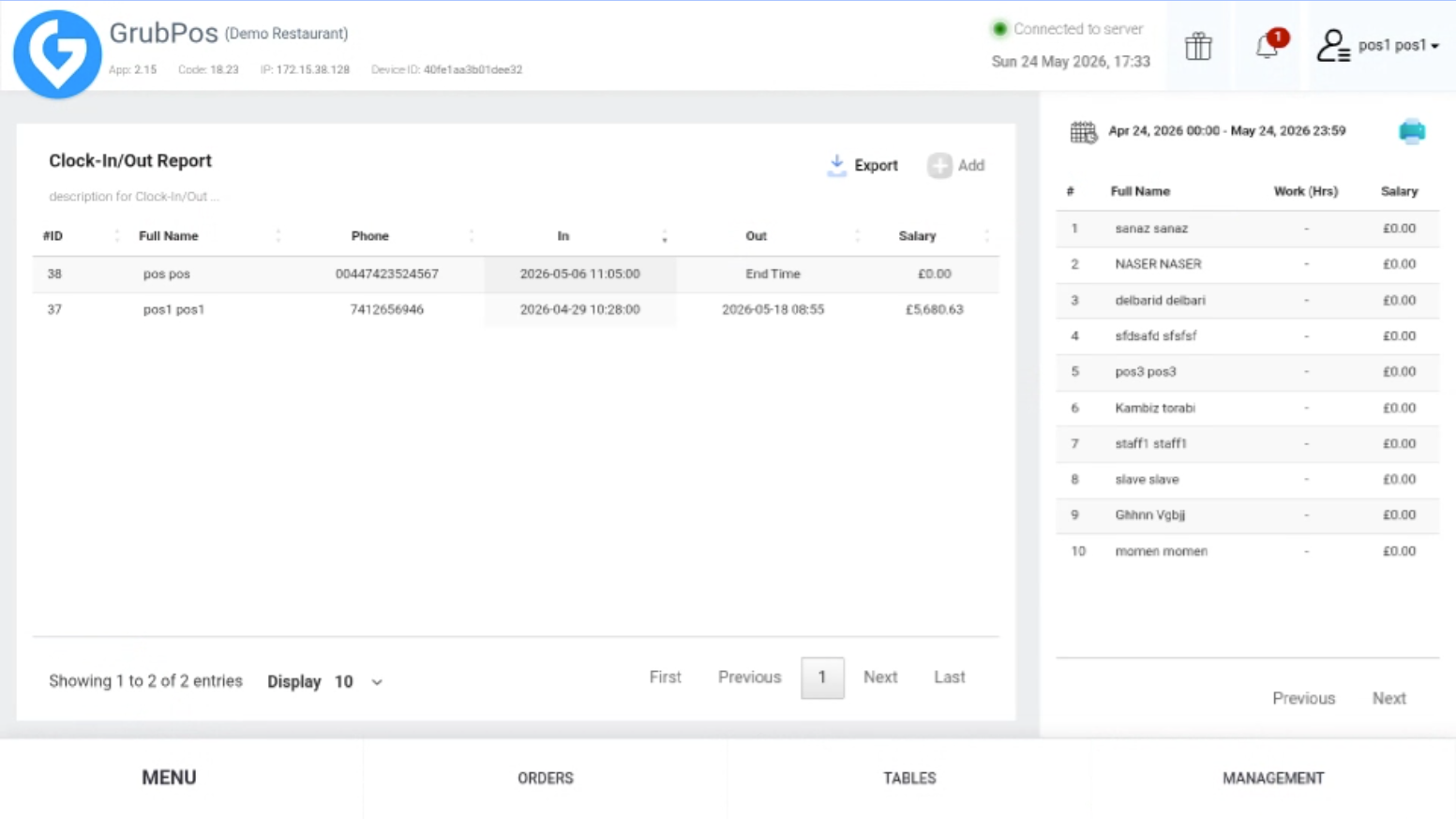
- Select the columns you want to include in the report, such as:
- Full Name
- Phone
- Clock In
- Clock Out
- Click Export to download the report
Steps to Download the Clock-In/Out Summary
- Go to Management > Reports > Clock-In/Out Report
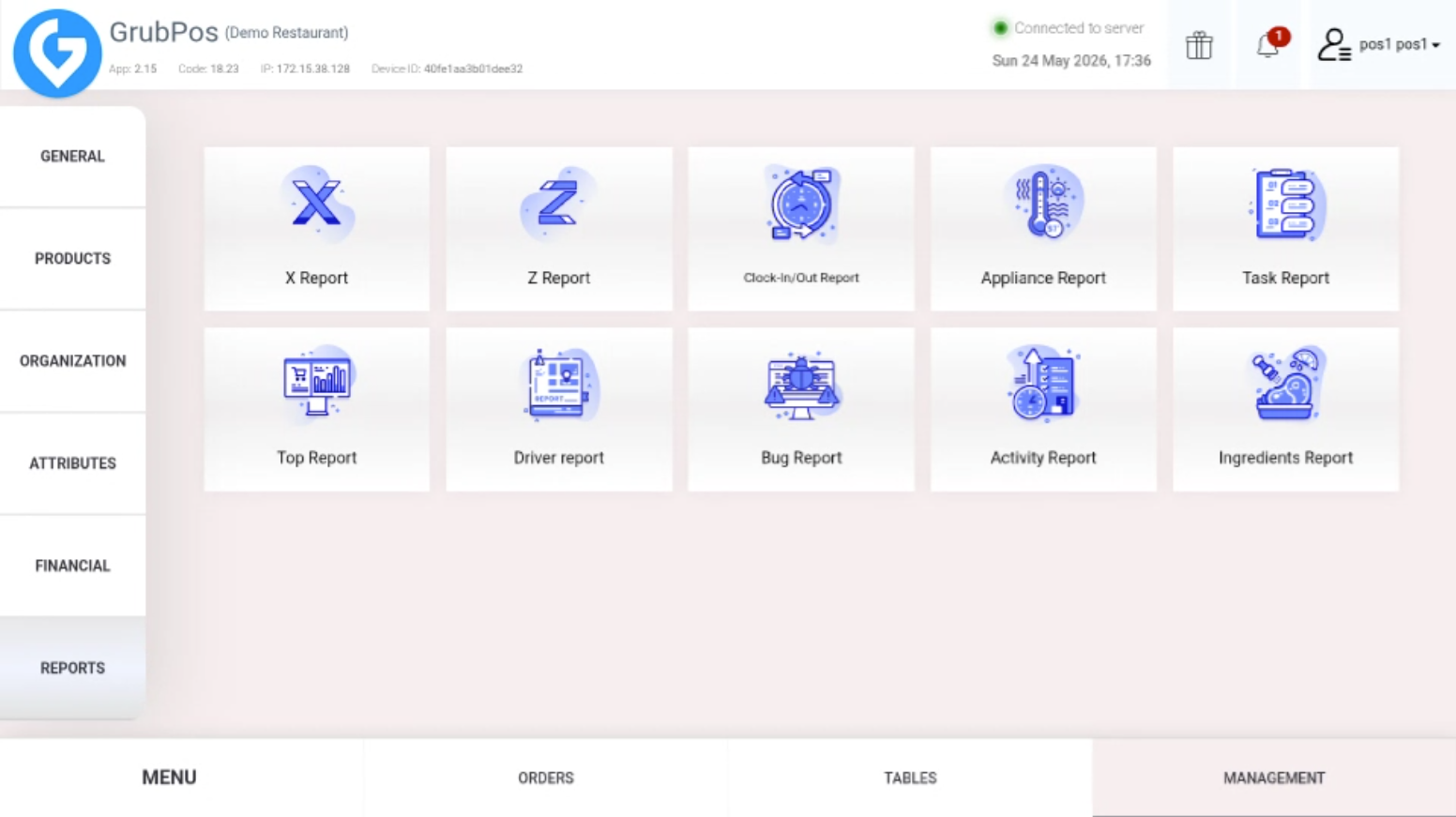
- On the upper-right side of the screen, click the Printer icon
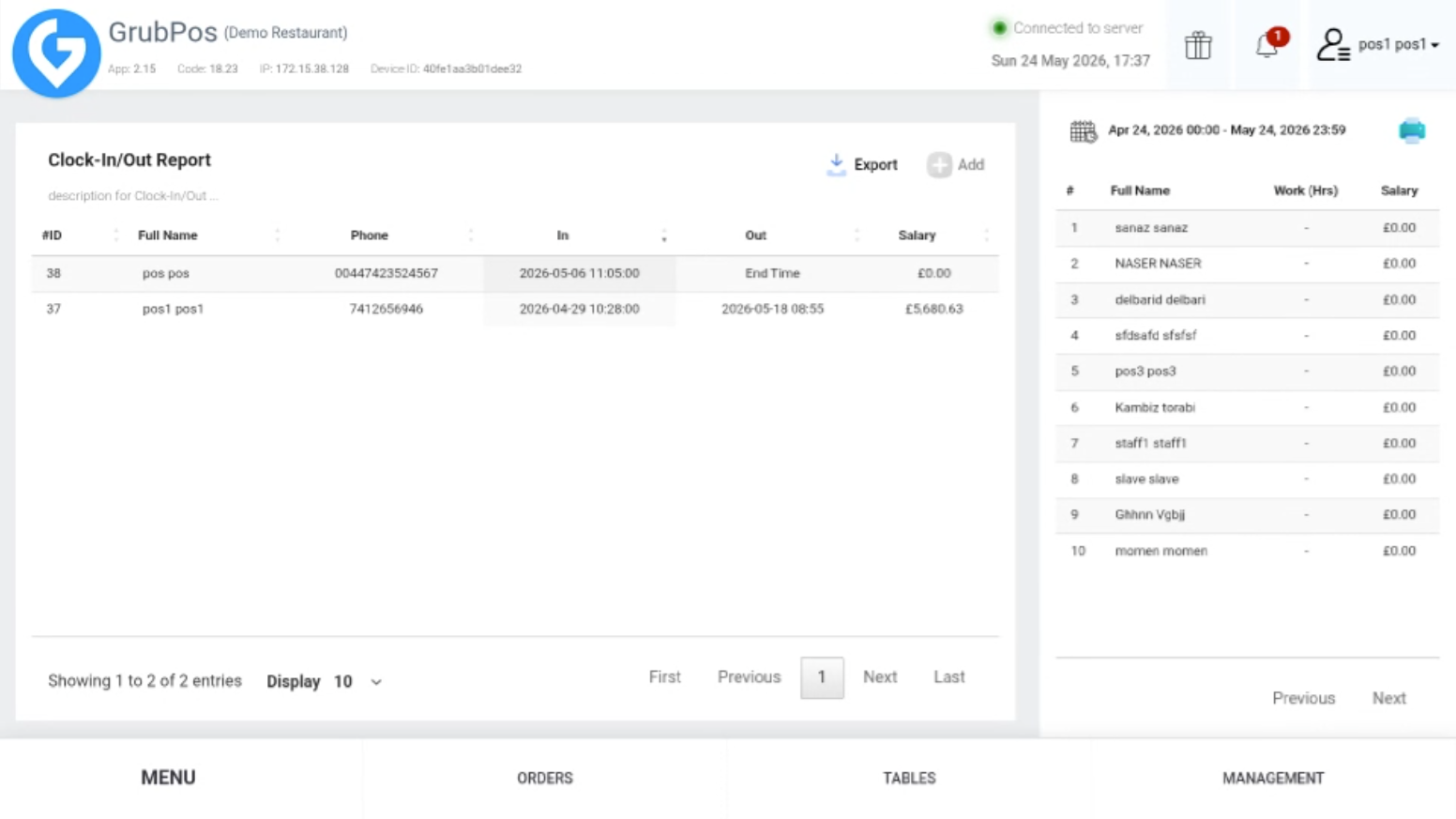
- The system will generate the Clock-In/Out Summary for printing
Was this article helpful?
That’s Great!
Thank you for your feedback
Sorry! We couldn't be helpful
Thank you for your feedback
Feedback sent
We appreciate your effort and will try to fix the article