The Tasks Report feature in GrubPOS allows users to create and review task records, monitor staff responses, and track task activity within a selected date range.
How to Add a Task Report
- Go to Management > Reports > Tasks Report
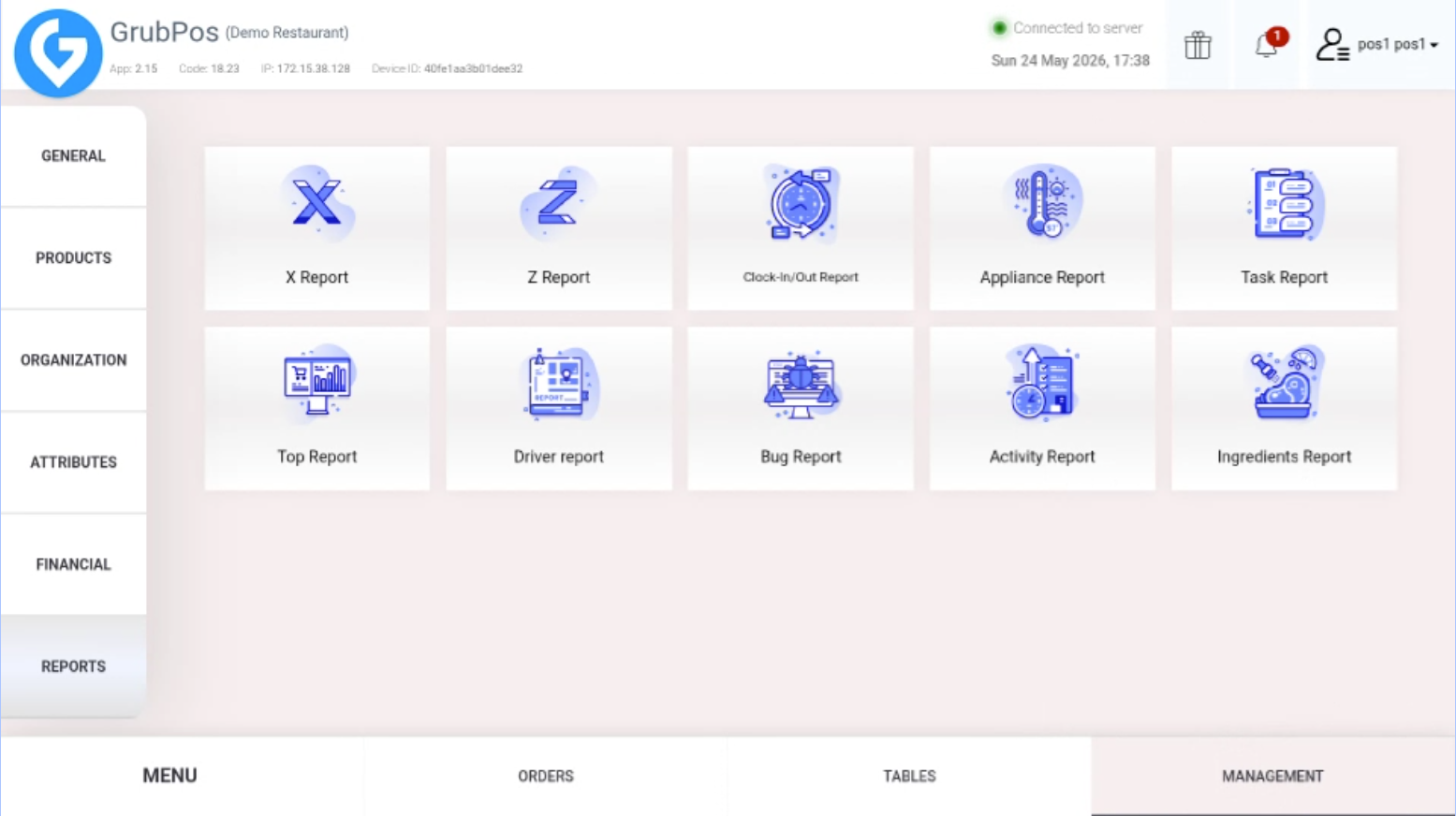
- Click Add Report
Information Available in the Tasks Report
- Task ID Number
- Task Name
- Color Code
- Response
- Report Date
- Response Date
- Assigned Staff
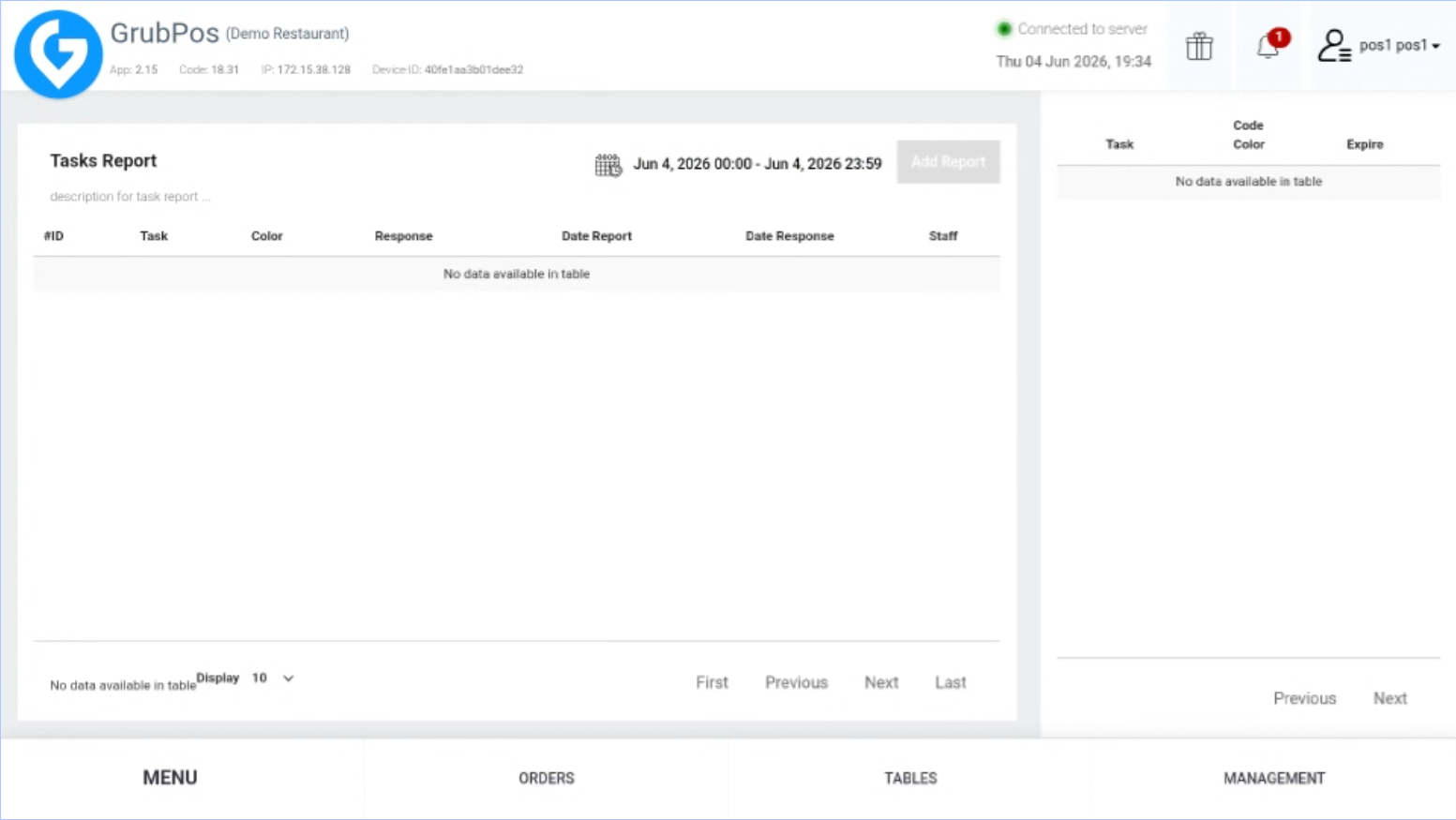
Filter Options
- You can also view task reports for different date ranges, such as: Yesterday, Tomorrow, Last 7 Days, Last 30 Days, Next 7 Days, Custom Range, and more.
Was this article helpful?
That’s Great!
Thank you for your feedback
Sorry! We couldn't be helpful
Thank you for your feedback
Feedback sent
We appreciate your effort and will try to fix the article