Use Expenses to record business costs and review previously saved expense entries.
How to Add Expenses in GrubPOS
- Go to Management > Financial > Expenses
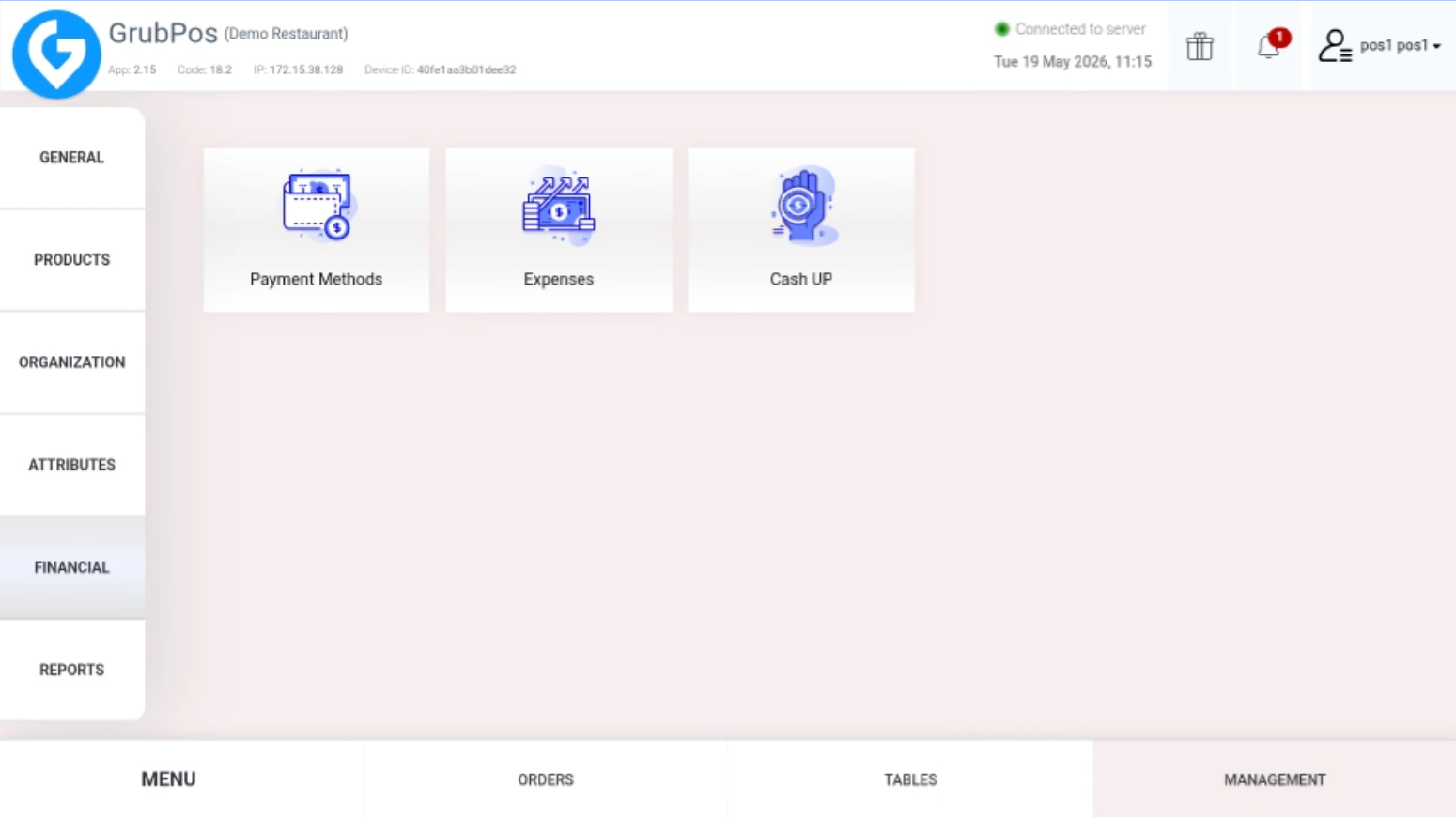 This section is used to manage and record business expenses.
 - Click Add New, then type the expense type and click Add
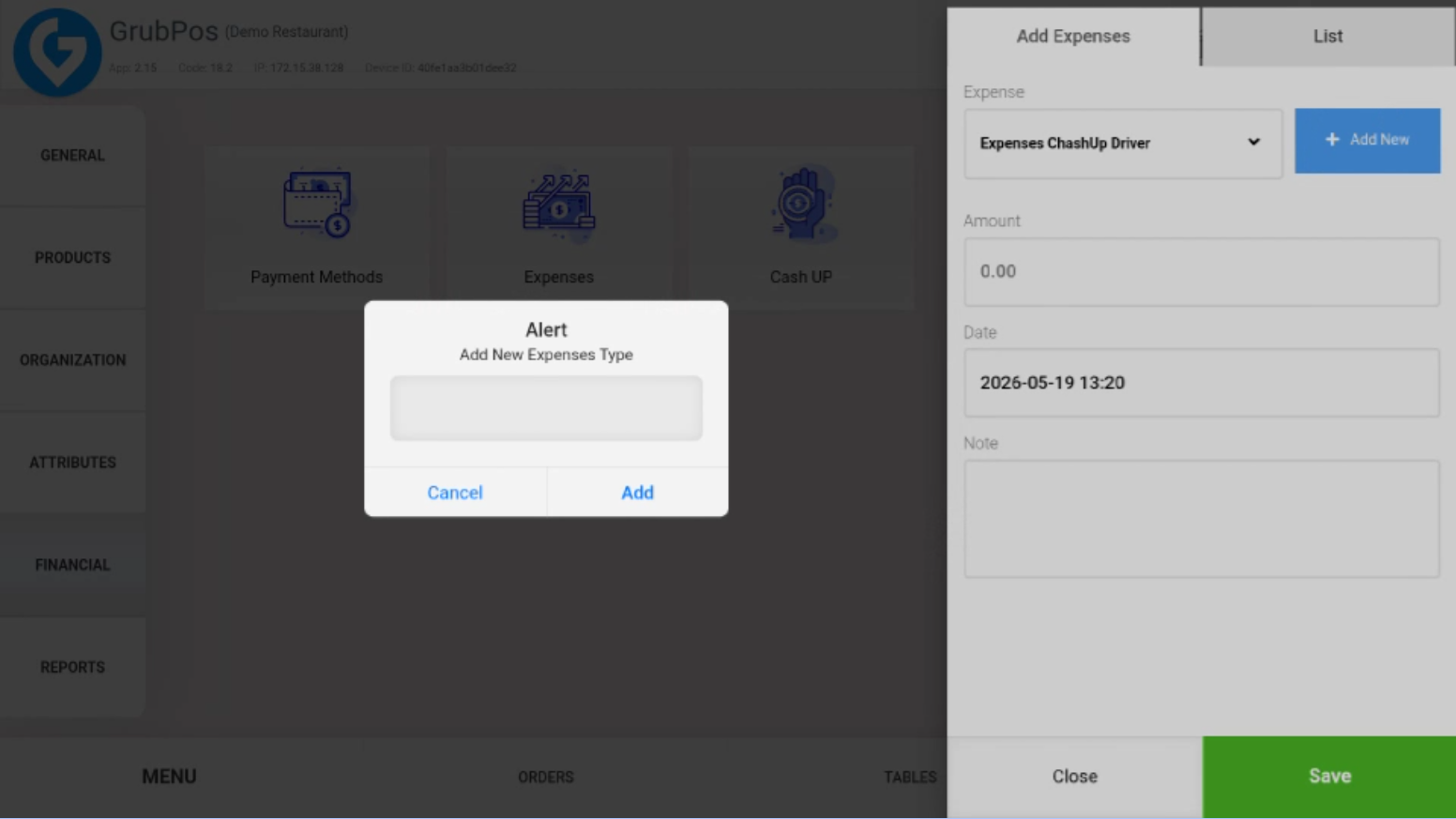 This allows you to create a new expense category if needed.
 - Enter the Amount, select the Date, and add a Note if necessary
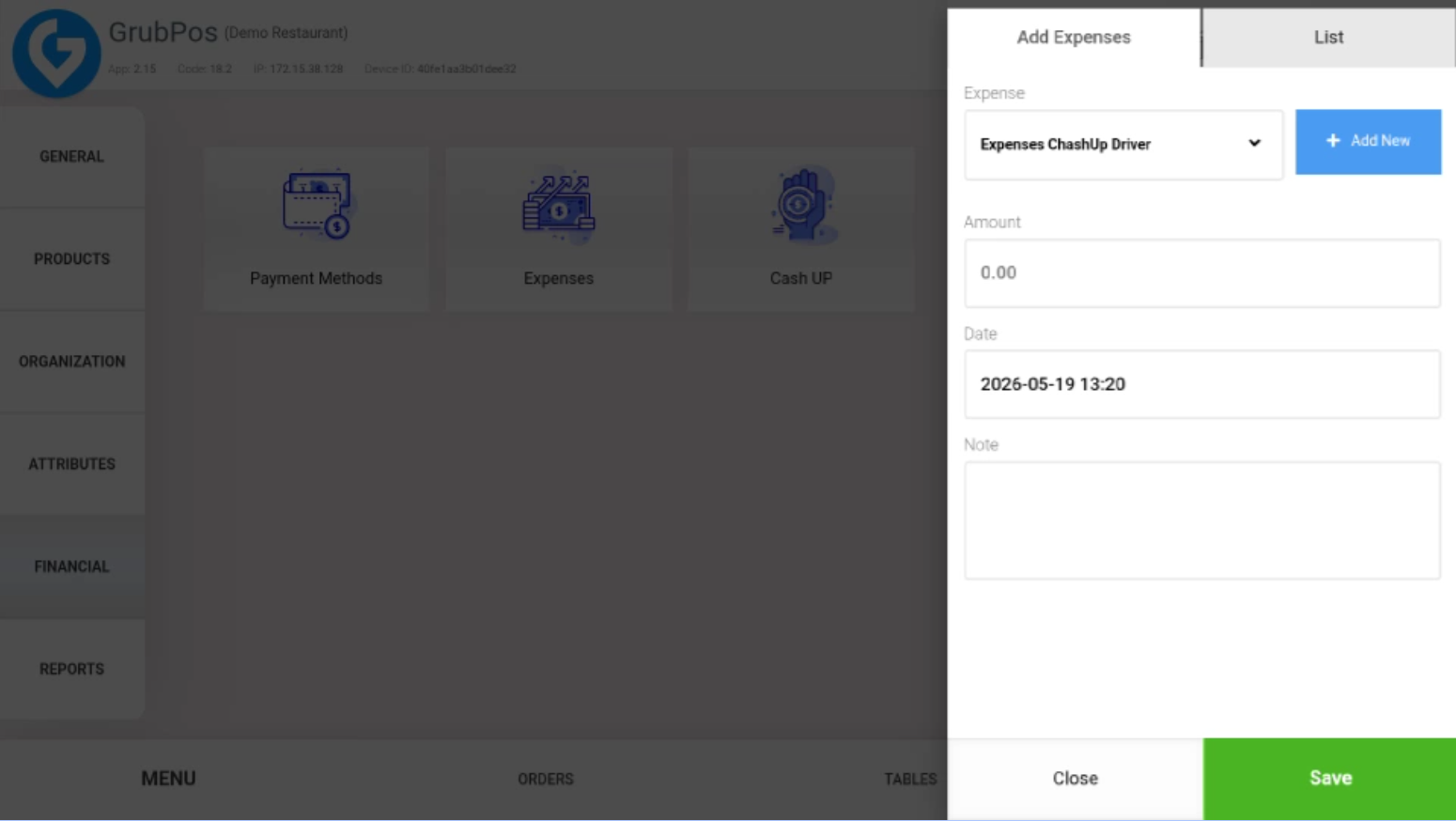 Ensure all details are correct before proceeding.
 - Click SaveThe expense will then be recorded in the system.
How to View Expenses in GrubPOS
- Go to Management > Financial > Expenses
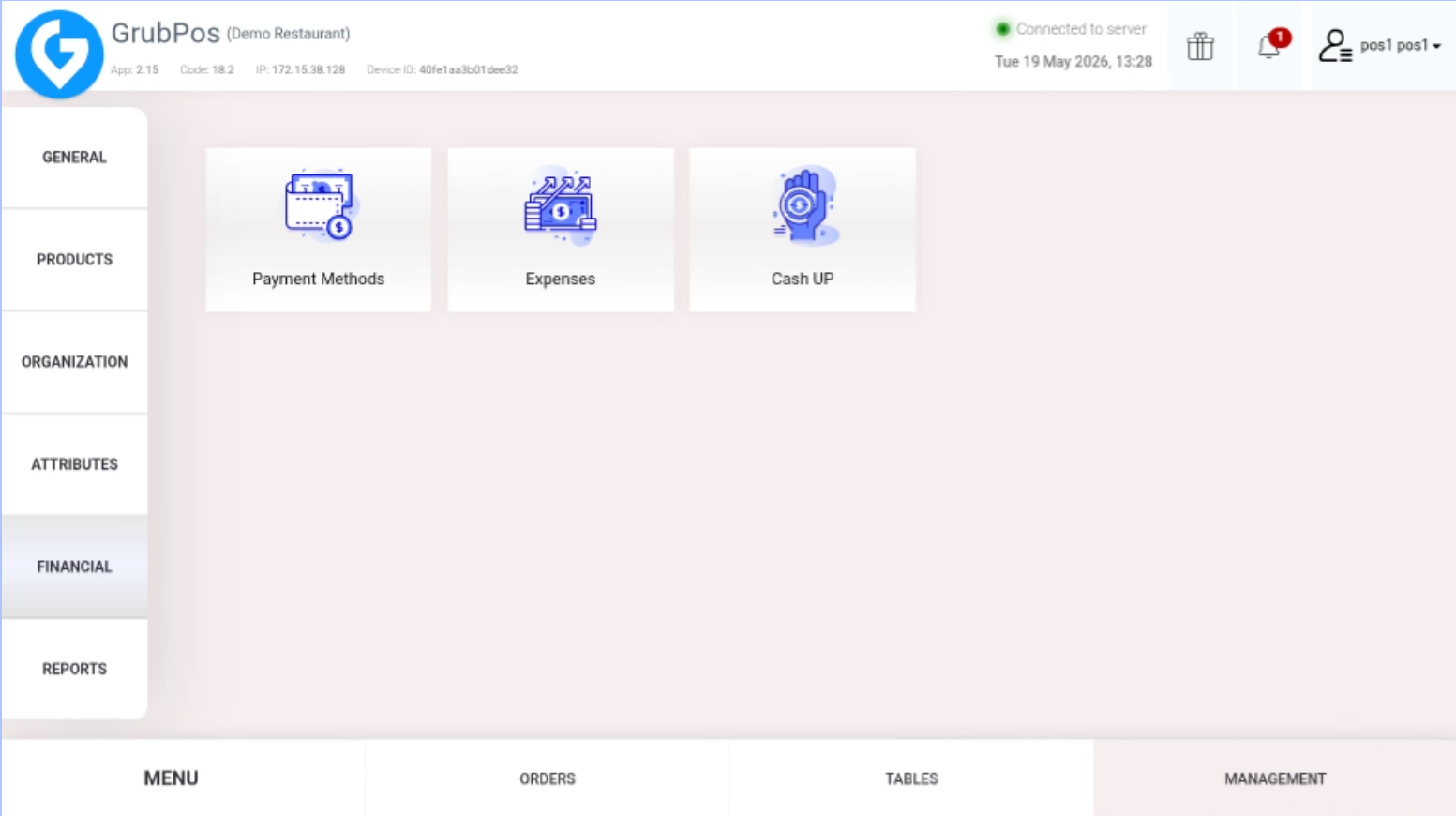 This section allows you to access all recorded expenses.
 - Click List
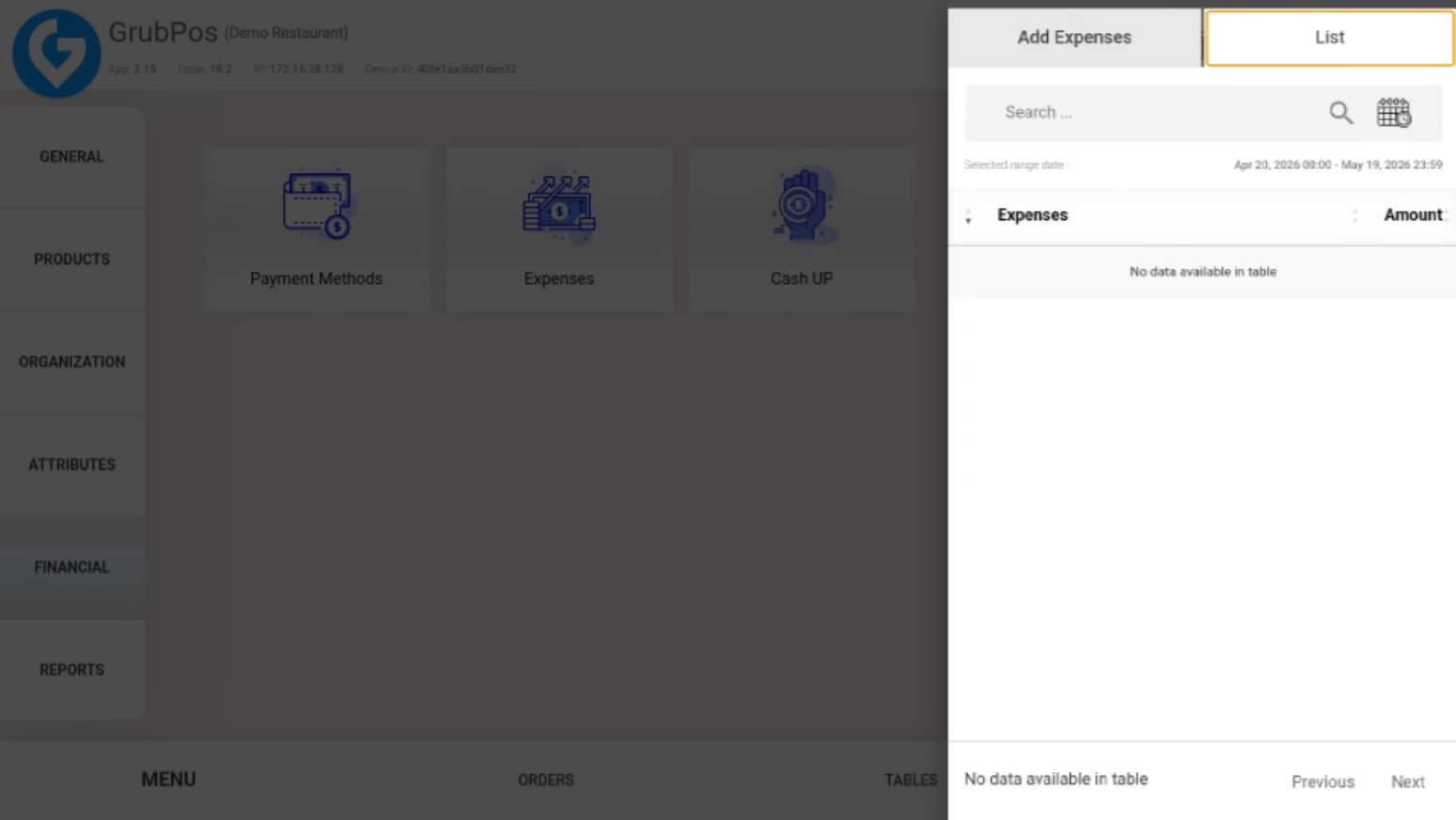 This will display all saved expense entries.
 - Search for the specific expense. You can also filter by date to view expenses for a day, week, month, year, or a custom range
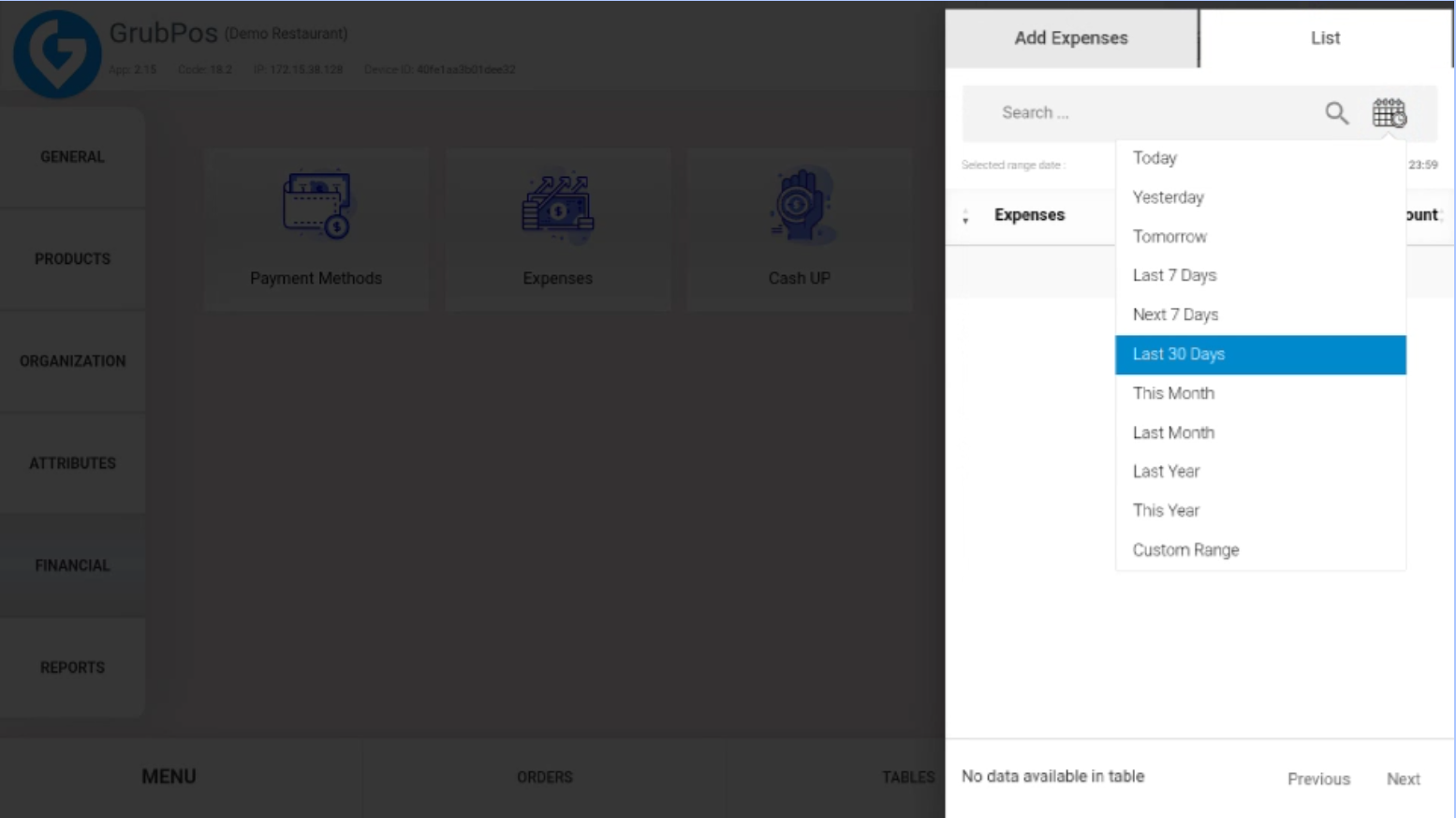 This helps you easily locate and review transactions.
 - You can edit or delete an expense if changes are needed
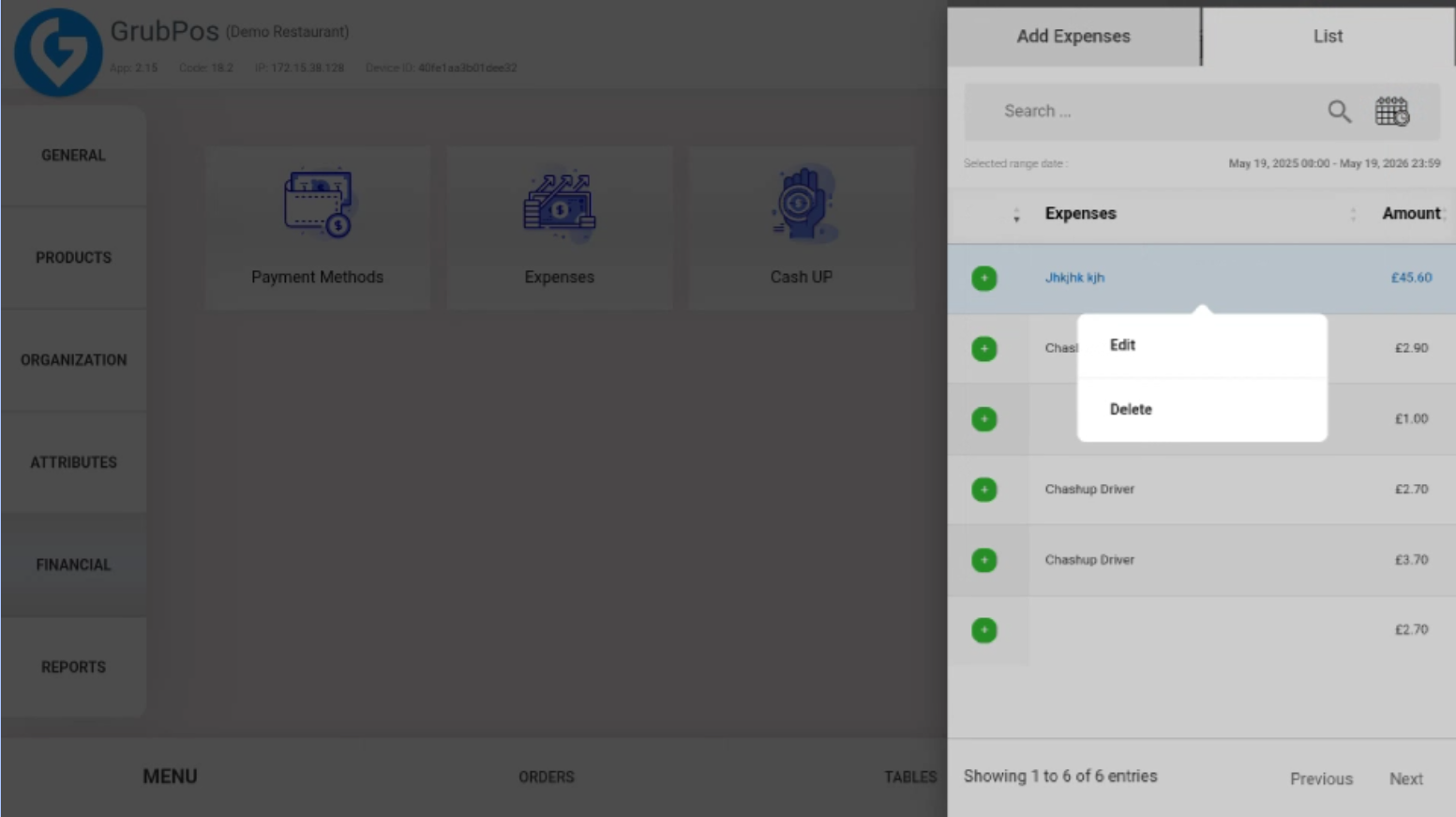 Make sure any modifications are accurate to maintain correct financial records.
Was this article helpful?
That’s Great!
Thank you for your feedback
Sorry! We couldn't be helpful
Thank you for your feedback
Feedback sent
We appreciate your effort and will try to fix the article